Search

To Have and Have Not

technical musings and more

Author

dbmartin00

Using Split with Contentful

Using Split With Contentful

Contentful is a popular headless content management system. Split is the leading feature delivery platform. It is frequently the case that customers will want to combine both products: Contentful delivers the right content to a page, and Split can feature flag it for controlled release or experimentation.

“Use the APIs, Luke”

Contentful provides APIs for delivering content to a page. This article will work with the Contentful Javascript API. Split also has a Javascript SDK. You could also code for both in PHP, Android, iOS, Java, Python, Ruby, and .NET.

If you want to look ahead, you can check out the full example HTML/js for this article.

Initializing the API and SDK

First, include your API and SDK.

<script src="https://cdn.jsdelivr.net/npm/contentful@latest/dist/contentful.browser.min.js"></script>
<script src="//cdn.split.io/sdk/split-10.19.0.min.js"></script>

You can get the latest links and versions by visiting the links to API and SDK documentation in the previous section.

Contentful initializes in a straightforward manner.

var client = contentful.createClient({
	space: '<your contentful space>',
	accessToken: '<your contentful access token>',
});

You’ll have get your space and access token from Contentful console.

Split initialization also expects a key.

var factory = splitio({
	core: {
		authorizationKey: '<your split client sdk key>',
		key: 'user_id' // unique identifier for your user
	},
	schedule: {
		eventsPushRate: 5
	}
});

var splitClient = factory.client();

The authorization key is most easily obtained using the Syntax button of your split feature flag rules configuration screen. This tutorial will not cover creating and configuring a feature flag in detail, but you can always visit Split’s help pages for coaching.

In the example above, you would substitute your user’s actual user id with the placeholder ‘user_id’.

Once you call factory.client(), Split will begin downloading your feature flags.

I said “draw!” Cowboy!

splitClient.on(splitClient.Event.SDK_READY, function() {
	console.log('SDK_READY');
	draw();
});

splitClient.on(splitClient.Event.SDK_UPDATE, function() {
	console.log('SDK_UPDATE');
	draw();
});

Split is event-driven. When the feature flag rules are received, or when they’re updated, Split gives your Javascript an event with which it can turn and draw whatever user interface components have been feature flagged.

What does draw() do?

Feature flagging Contentful content

function draw() {
	const treatment = splitClient.getTreatment('contentful_books');
	if (treatment === 'on') {
		client.getEntry('JNdDRwCQpLKpC6yF6').then(function (entry) {
			console.log(entry.fields.products);
			drawBooks(entry.fields.products);
		});
	} else if (treatment === 'off') {
		client.getEntry('JfMYap40g0qMlb0hWT').then(function (entry) {
		console.log(entry.fields.childrensProducts);
			drawBooks(entry.fields.childrensProducts);
		});
	} else {
		drawBooks(['Rowling', 'Bellairs', 'Eddings']);
	}
}

Contentful is keeping two lists of authors: children’s and adult. First, Split calls getTreatment to decide if our user should get the “on” or the “off” treatment in this feature flag, 'contentful_books'. The feature flag may be set to provide either one, or to give an answer at random (perhaps for an A/B test).

Once Split has decided which treatment to provide, the if-then-else statement determines which Contentful API call to make. One call pulls the children’s books authors, and the other the adult books authors.

The else statement at the end is an example of a control block. There is no right way to implement a control block; it’s the default behavior when Split can’t be reached. In this case, it passes a list of children’s gothic authors (Eddings may not qualify, but you get the idea).

How do you update a list dynamically?

With a little DOM manipulation…

function drawBooks(list) {
	let options = '<optgroup>';
	for(const option of list) {
		options += '<option>' + option + '</option>';
	}
	options += '</optgroup>';
	document.getElementById('books').innerHTML = options;
}

'books' is a <select> element. Each time draw() is invoked, Contentful will substitute the new list of authors.

How can Split run an A/B test?

function clickRead() {
	const e = document.getElementById('books');
	const author = e.options[e.selectedIndex].text;
	const properties = {
		author: author
	};
	const result = splitClient.track('user', 'readClick', 0, properties);
	console.log(result);
}

The full example has a few additional properties fields, for simplicity I’ve left only the author property in this example.

When the read button is clicked, this click handler constructs properties that include the name of the author selected. Then the properties are sent by track call to the Split cloud. The Split SDK handles buffering and transporting the events.

Since Split knows which authors the user was viewing (using a Split impression that was generated when getTreatment was called in draw()) it can tally how many clicks were made for children’s versus adult authors, and even create tallies for the authors individually.

In the chart below, clicks on children’s authors are compared to clicks on adult authors.  An initial gap becomes a narrow margin.  In this case, Split isn’t going to find a statistically significant difference.  Maybe if we had compared the children’s gothic writers?  Sounds like a job for an A/B/C test!

Questions?

Please contact the author, david.martin@split.io

Written with StackEdit.

When to Use Dictionaries with Split

When to Use Dictionaries with Split

split_software_logo

Split Software is a feature management platform that supports client-side evaluation: evaluating feature flags entirely on the client-side, local to the browser or mobile device. This has a major benefit to data privacy, as no private information need be sent to the Split cloud for outsourced evaluation.

In many cases, a feature flag evaluation is simple, like matching or randomizing on the user id. In other cases, Split users want to identify which end user gets a flag by a private attribute, e.g. age or net worth. Let’s see how these scenarios look in Split SDK code.

This article uses examples in Javascript using the Split Javascript SDK. There is a .NET example at the end of the article.

Matching with Key

Split’s minimum requirement for evaluating a feature flag is a key, which is usually a user id. Split offers custom traffic types so this key could also identify an anonymous user, a tenant, a store, or anything to which a Split user wants to rollout features. For this article, we suppose it is a user id.

Split can be very dynamic with just a key. You can individually enable keys into a feature, often for testing. You can make lists of keys, callled segments, and turn features on in bulk (both JSON and CSV are supported). You can also do percentage release and randomly allocate your feature to keys as they are evaluated.

Most feature flags are done solely with key. What does it look like to evalute Split feature flag using only key?

	var factory = splitio({
	  core: {
	    authorizationKey: 'your split client-side api key',
	    key: 'some_userid' // unique identifier for your user
	  }
	});

	var client = factory.client();

	client.on(client.Event.SDK_READY, function() {
	  var treatment = client.getTreatment('cache_or_not_to_cache');

	  if (treatment === 'on') {
	      // insert on code here
	  }   else   if (treatment === 'off') {
	      // insert off code here
	  }   else {
	      // insert control code here
	  }

	});	

After factory initialization, Split waits on the SDK_READY event (during which time, SDK rule download occurs). getTreatment is the way a feature flag is evaluated. In this example, the only parameter is the name of the split, cache_or_not_to_cache. The key is implicit; it was set in the SDK config above as some_userid (power note: there is a way to swap in a new key if necessary).

This feature flag is set up to invididually enable, enable by segment, or randomly enable the flag. No attributes are necessary, no objects of any sort.

What if you want to be more surgical about identifying which users to enable with your flag?

Matching with Attributes

Untitled

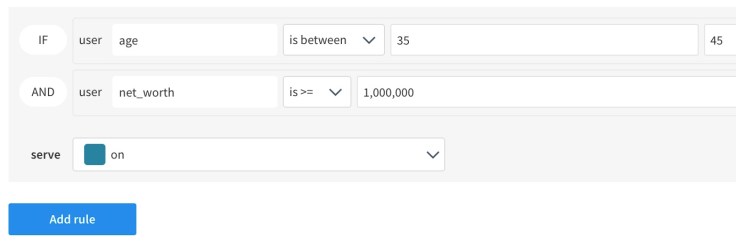
In this example, we’ve created a targeting rule in the Split console that looks for an age group and band of net worth. These parameters are private by nature. In the code sample below, the Split developer provides values for a user as an attributes map.

var attributes = {
  net_worth : 1250000,
  age : 40
}

client.on(client.Event.SDK_READY, function() {
  var treatment = client.getTreatment('cache_or_not_to_cache',
                                   attributes);

  if (treatment === 'on') {
      // insert on code here
  }   else   if (treatment === 'off') {
      // insert off code here
  }   else {
      // insert control code here
  }

});

Our user is forty with a net worth of 1.25M, so he qualifies for the feature. Note that if we had invidually enabled our user to “off” in this feature flag, they would not have received the feature. In Split, the feature flags are evaluated top to bottom.

Caching Attributes

Now let’s suppose we are initializing the mobile or browser interface. At this moment, user data is available. Let’s create our attributes and cache them.

var attributes = {
  net_worth : 1250000,
  age : 40
}

var result = client.setAttributes(attributes);

The setAttributes call can occur any time, and there are other signatures that let you set single key-value pairs. By calling setAttributes, the Split SDK will know to keep these values in cache for subsequent getTreatment calls.

client.on(client.Event.SDK_READY, function() {
  var treatment = client.getTreatment('cache_or_not_to_cache');

  if (treatment === 'on') {
      // insert on code here
  }   else   if (treatment === 'off') {
      // insert off code here
  }   else {
      // insert control code here
  }
});

Note that this code looks the same as the original, key-only example. That’s because the Split SDK is pulling the attributes implicitly from the cache. This gets the same result as explicitly providing the attributes in the previous example, but without having to marshall private data ahead of the evaluation itself.

From a convenience perspective, this is the same as uploading private data to the server to have on hand for evaluation, but with Split all the attributes are kept local and private.

On the Server-side in C#

var values = new List<string> { "read", "write" };
var attributes = new Dictionary<string, object>
{
    { "plan_type", "growth" },
    { "registered_date", System.DateTime.UtcNow },
    { "deal_size", 1000 },
    { "paying_customer", true },
    { "permissions", values }
};
var treatment = sdk.GetTreatment("some_userid","cache_or_not_to_cache", attributes);

The .NET SDK doesn’t offer the same caching functionality because it is assumed that a cache could easily be kept by the Split developer in a server-side context.

Otherwise, the behavior of the SDK is the same. The .NET SDK is eligible to be connected to the Redis cache to give it a performance edge on the clients.

Written with StackEdit.

Serverless C# with Split

Serverless C# with Split

Whether you’ve already hit the serverless wave or are just curious this is a short article taking you through deploying an Azure Function written in C# that uses Split to evaluate a feature flag: serverless, C#, and Split all in one cute burrito.

Prerequisites

I assume you have an Azure Cloud account and a Split account. It helps if you can read some code, but it’s not requirred to be a success.

Create an Azure Function App

From the Azure Portal home, roll over Function App and click to create.

Your subscription should fill in automatically, but adjust it if necessary.

Under Instance Details, pick a Function App name, e.g. SplitSampleFx

Set the runtime stack to .NET 6 and pick a region that makes sense to you (mine is in Central US).

I left everything else default. Now click Next: Hosting.

Hosting -> default storage worked for me
Networking -> defaults again
Monitoring -> defaults are ok
Tags -> defaults ok

Now on final page, click Create.
The deployment will be in progress for a few minutes.

When complete, you can click Go to resource button. in the middle of the page.

Define an Azure Function

On the left edge, your Function App should have a Functions menu. The first option is Functions. Click it.

A blank table appears, but it has a Create button. We like those! Click it.

Select the HTTP trigger template. Click create.

Add Code to Your Function

Test the function by clicking Code + Test, then clicking Test/Run in the toolbar above the sample code. You can take the Run defaults.

You should get HTTP response content like this:

Hello, Azure. This HTTP triggered function executed successfully.

Add the Split Dependency

.NET does this with a function.proj file:

<Project Sdk="Microsoft.NET.Sdk">
<PropertyGroup>
    <TargetFramework>netstandard2.0</TargetFramework>
  </PropertyGroup>

  <ItemGroup>
    <PackageReference Include="Splitio" Version="6.3.4"/>
  </ItemGroup>

</Project>

You can copy-and-paste this into a local file called function.proj, then click the Upload button on the Function toolbar (right next to Test / Run).

One more file like this, *Project.json. Same drill, copy-and-paste the code below into a local file, then upload it like you did function.proj

{
  "frameworks": {
    "net46":{
      "dependencies": {
        "Microsoft.ProjectOxford.Face": "1.1.0"
      }
    }
   }
}

Test that the dependency is now available by adding a line of code to the sample code:

log.LogInformation("C# HTTP trigger function processed a request.");
var config = ConfigurationOptions();
string name = req.Query["name"];

Add an include for Split:

using Splitio.Services.Client.Classes;

This can come right underneath the Newtonsoft.Json include.

If you get this error on the log, Split isn’t found yet.

2022-04-27T16:25:54.354 [Error] run.csx(12,5): error CS0103: The name 'ConfigurationOptions' does not exist in the current context

Open function.proj from the dropdown menu above (it is showing run.csx by default) and see if it has contents. Cut-and-paste the body of function.proj again if necessary (as shown above).

Save and go back to run.csx. If everything is happy, you’ll get output like the following:

2022-04-27T16:38:28.193 [Information] Compilation succeeded.
2022-04-27T16:38:47.417 [Information] Executing 'Functions.HttpTrigger1' (Reason='This function was programmatically called via the host APIs.', Id=0256c5da-824d-4d89-a902-27d6693454bc)
2022-04-27T16:38:47.614 [Information] C# HTTP trigger function processed a request.
2022-04-27T16:38:47.617 [Information] Executed 'Functions.HttpTrigger1' (Succeeded, Id=0256c5da-824d-4d89-a902-27d6693454bc, Duration=200ms)

Create an azure_sample Split

From your Split home, click on Splits in the navigation bar at left.

Create a new split called “azure_sample” and give it a traffic type of user. Click Create.

Change the treatment names: “on” -> “blue” and “off” -> “red”.

Attach configuration to your treatments in JSON:

{"urls": ["http://foo", "http://bar"]}

and for red treatment

{"urls": ["http://baz", "http://quux"]}

Click save changes button (upper right) and then confirm on the following screen. You know have a feature flag with a dynamic JSON payload.

Click on the Syntax button in the dropdown menu next to the KILL button in your new feature flag’s editor screen. Go to the .NET option. Copy-and-paste the long looking key in the SplitFactory. You need this in the next step.

Replace with the Split sample code

Now, replace your entire run.csx with this Split sample code. Substitute the SplitFactory key with the one you grabbed from the Syntax generator in the previous step.

#r "Newtonsoft.Json"

using System.Net;
using Microsoft.AspNetCore.Mvc;
using Microsoft.Extensions.Primitives;
using Newtonsoft.Json;
using Splitio.Services.Client.Classes;

public static async Task<IActionResult> Run(HttpRequest req, ILogger log)
{
    log.LogInformation("C# HTTP trigger function processed a request.");
    var config = new ConfigurationOptions();

    var factory = new SplitFactory("your split sdk cient key", config);
    var sdk = factory.Client();

    try
    {
        sdk.BlockUntilReady(10000);
        log.LogInformation("SDK ready");
    }
    catch (Exception ex)
    {
        Console.WriteLine(ex);
    }

    log.LogInformation("dmartin treatment? " + sdk.GetTreatment("dmartin", "azure_sample"));

    var result = sdk.GetTreatmentWithConfig("dmartin", "azure_sample");
    log.LogInformation("split json? " + result.Config);

    string name = req.Query["name"];

    string requestBody = await new StreamReader(req.Body).ReadToEndAsync();
    dynamic data = JsonConvert.DeserializeObject(requestBody);
    name = name ?? data?.name;

    string responseMessage = string.IsNullOrEmpty(name)
        ? "This HTTP triggered function executed successfully. Pass a name in the query string or in the request body for a personalized response."
                : $"Hello, {name}. The treatment is {result.Treatment}. {result.Config}";

            return new OkObjectResult(responseMessage);
}

FINISHED

Run your function. If all goes well, you’ll see:

Hello, Azure. The treatment is off. {"urls": ["http://baz", "http://quux"]}

This means you are evaluating a feature flag with a dynamic JSON treatment payload from an Azure Function. Congratulations?

Troubleshooting?

Please don’t be shy with questions.

david.martin@split.io

Written with StackEdit.

Serverless Ruby with Split

Serverless Ruby with Split

AWS lambdas were first launched way back in November of 2014. Today, you can create serverless functions in a variety of languages, including Ruby 2.7

I have a lot of familiarity with Java and node.js lambdas, but had never deployed a Ruby lambda until now. This blog catalogs the steps necessary to not just deploy a lambda, but include a high performance feature flag using Split.

Start working this blog with some time on your hands. I hope it will take you no more than a few hours, but I spent a lot more than that blazing the trail. If you don’t know Ruby, add some more time. If you don’t know Split, this isn’t the right place to start.

Background notes

I did not use the AWS command line client, and it might have been easier if I did. I went down the installation rabbit hole and lost my nerve several levels deep. The main consequence of doing things manually is the docker step for bundling gems and the manual upload process. If I were setting up for a production shop, I would figure out how to get the AWS client working. For this blog, we go without.

I work on an Apple laptop running OSX (Monterery). I have not tested these instructions on

Get started

Create a clean directory. Make sure you’re running the right version of Ruby. The AWS lambda printed out that it was using 2.7.5, so I used rvm to install exactly that version.

David-M-MacBook-Pro-NEW:lambda davidmartin$ ruby --version
ruby 2.7.5p203 (2021-11-24 revision f69aeb8314) [x86_64-darwin21]

Create Gemfile

source 'https://rubygems.org'

gem 'splitclient-rb', '~> 7.3.4'

That’s all I needed to get Split included. If your program needs more gems, include them.

Create ruby-split.rb

The script I used has some helpful debugging at the top.


print "CWD: " + Dir.pwd + "\n"
print "RUBY VERSION: " + RUBY_VERSION + "\n"
 
load_paths = Dir[
  "/var/task/vendor/bundle/ruby/2.7.0/gems/**/lib"
]
$LOAD_PATH.unshift(*load_paths)
$LOAD_PATH.each { |x| puts x }

require 'json'
require 'splitclient-rb'

options = {
  connection_timeout: 10,
  read_timeout: 5,
  cache_adapter: :redis,
  mode: :consumer,
  redis_url: 'redis://your-redis-host.amazonaws.com:6379/0',
  redis_namespace: "demo-prod",
  logger: Logger.new('/tmp/split.log'),
  debug_enabled: true 
}

split_factory = SplitIoClient::SplitFactory.new('your split sdk server key', options)
$split_client = split_factory.client

begin  
  $split_client.block_until_ready  
rescue SplitIoClient::SDKBlockerTimeoutExpiredException
  puts 'SDK is not ready. Decide whether to continue or abort execution'  
end  

def lambda_handler(event:, context:)

    puts "Hello Split World!"
    
  	result = $split_client.get_treatment_with_config('dmartin-ruby', 'multivariant_demo')
    configs = JSON.parse(result[:config])
    treatment = result[:treatment]
    configs[:treatment] = treatment

    { statusCode: 200, body: configs }
end


# CDN configuration
    # options = {connection_timeout: 10,
    #            read_timeout: 5,
    #            features_refresh_rate: 5,
    #            segments_refresh_rate: 120,
    #            metrics_refresh_rate: 360,
    #            impressions_refresh_rate: 1,
    #            logger: Logger.new('/tmp/split.log'),
    #            debug_enabled: true }

The script expects that you have set up the Synchronizer/Redis optimization for peak performance of the lambda (that’s the redis host mentioned). For testing, you can swap the options commented out at the bottom with the redis options, but the performance isn’t good enough for most production uses.

You’ll also need to get the Split server SDK key, either from the Syntax generator for your split (menu next to KILL button), or in the Admin Settings.

Finally, create a split with a dynamic config. It doesn’t matter what JSON or key-value pairs you load. My multivariant split is called “multivariant_demo”

Install the Bundle using Docker

This step is necessary to put the third party code into the right format for AWS. I tried bundling dozens of times and didn’t get a good result until I used this approach.

I used this Ruby .bundle/config

---
BUNDLE_PATH: "vendor/bundle"
BUNDLE_DEPLOYMENT: "true"
BUNDLE_WITHOUT: "development:test"

And then I ran the following Docker command. Lambci is a sandboxed AWS Lambda environment that can be run locally. It finally put all the third party code into just the right spot.

docker run --rm  -v  "$PWD":/var/task lambci/lambda:build-ruby2.7 bundle install --deployment

Yep, you have to have Docker installed to run this command.

... many lines above ...
Fetching splitclient-rb 7.3.4
Installing splitclient-rb 7.3.4 with native extensions
Bundle complete! 1 Gemfile dependency, 25 gems now installed.
Gems in the groups development and test were not installed.
Bundled gems are installed into `./vendor/bundle`

Create a ZIP for Upload

zip -r ruby-split.zip ruby-split.rb vendor

Create a Ruby 2.7 lambda

Once created…

  • upload your ZIP file
  • update your configuration to use VPC that can see your Redis host (unless you decided to use the CDN)
  • change your code runtime settings to hit the right handler
ruby-split.lambda_handler

… or whatever you named your Ruby script.

Test for Success

{
  "statusCode": 200,
  "body": {
    "text": "Adopt a Dog",
    "image": "http://www.cortazar-split.com/dog_origin.jpeg",
    "image_width": "100%"
  }
}

### Summary
Code SHA-256
9YUyQR/lSkO8v003jjb0pfDsz+iXkgZSnoqwtuehG04=
Request ID
ed590a7b-d4d9-4f9a-a5ed-856bde47a4d8
Duration
29.20 ms

Billed duration
30 ms
Resources configured
128 MB
Max memory used
65 MB

Troubleshooting

This was an advanced move for me, so I can easily understand if you have trouble along the way.

  • Use the Cloudwatch log

Add logging of your own as necessary.

  • Stackoverflow does have good advice, sometimes buried

The docker command to get the right bundle install was off a Stackoverflow answer.

I am happy to help any way I can.

Cheers!

David

Using Split with Segment

Using Split with Segment

What are Split and Segment?

Segment is a popular Customer Data Portal (CDP), software and APIs to collect, clean, and control their customers’ data. Split is the premier feature delivery platform, providing feature flags and experimentation as a service to engineers and product managers.

Why integrate? Segment is often used to capture what users see when they visit a site, where they clicked, and how long it took them to see a page. That information enables Split to setup A/B testing and alerts, giving the entire organization an impact-driven approach to features.

Pre-requisites

This video assumes you have familiarity with HTML and Javascript. While you don’t need to be an expert, it will help in understanding several steps.

In addition, you should have a login to Segment and a login to Split. Be ready to pass parameters from Split to Segment.

Getting Started

Create a basic HTML page

Introduce a Split

Control the page’s background color with a split you create.

Install the Segment SDK

This is Javascript on the HTML page. Verify that Segment and Split will share a user identifier key. Track an event to Segment.

Configure the Segment Integration

From Split, follow the steps to create a Segment integration.

Check Segment’s debug log

If any events are arriving in Segment, you know your track calls are working.

Create a Live Tail of Events in Split

When the integration has been properly configured, you will see event traffic from Segment.

Create a Split Metric

This is the backbone of Split A/B testing and alerting. Show alert policy.

Looking at Results

While it takes almost a thousand users for Split to reach statistical significance, you can reduce the statistical settings to allow it to happen faster. Look at sample test results.

Thank You

Thanks for watching this video about the Split and Segment integration.

Written with StackEdit.

Sending Split Impressions to S3

Sending Split Impressions to S3

What is Split and S3?

Split is the premier feature delivery platform. Using Split, you do targeted rollouts of new functionality, testing for positive impact to ensure business impact each step of the way.

Amazon Simple Storage Service (Amazon S3) is an object storage service that offers industry-leading scalability, data availability, security, and performance. AWS customers can teach Split to write its impressions to S3.

What’s an impression? When Split decides whether or not to give a feature, or treatment, to a user, that decision is logged into a simple record along with the name of the split (feature flag) and the user’s identifier. Impressions can be exported at the SDK level, or with a webhook. This article talks about writing impressions to S3.

Setup Split

Signup for Split

If you haven’t created a free account, visit the signup page.

Create a Feature Flag

  • Once in a the product, create a new split.
  • Call your split “s3_integration”.
  • Give your split a “user” traffic type and click Create.
  • Click to Add Rules in your Production environment.
  • Click the Save changes button and Confirm.
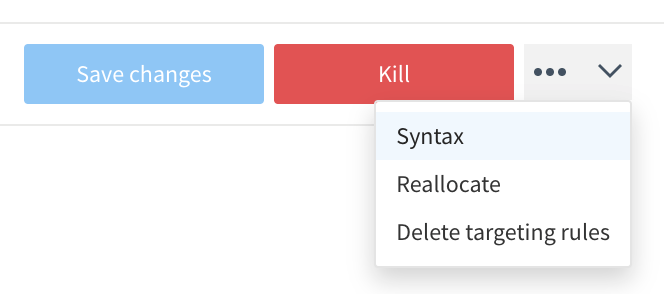
    Now we’re going to take some code out by clicking the Syntax button on the dropdown menu next to the Kill button:
    enter image description here
  • Choose JavaScript
  • Copy the code, which should look like the following:
var factory = splitio({
  core: {
    authorizationKey: 'your client-side sdk key',
    key: 'user_id' // unique identifier for your user
  }
});

var client = factory.client();

client.on(client.Event.SDK_READY, function() {
  var treatment = client.getTreatment('s3_integration');

  if (treatment === 'on') {
      // insert on code here
  }   else   if (treatment === 'off') {
      // insert off code here
  }   else {
      // insert control code here
  }

});

Copy the Split JavaScript include

//cdn.split.io/sdk/split-10.15.9.min.js

You can find the latest on Split’s support site, help.split.io.

Put your Split all together into an HTML page

Using your favorite text editor, create a s3.html file

<html>
<head>
<script src="//cdn.split.io/sdk/split-10.15.9.min.js"></script>
<script>

var factory = splitio({
  core: {
    authorizationKey: 'your client-side sdk key',
    key: 'user_id' // unique identifier for your user
  }
});

var client = factory.client();

client.on(client.Event.SDK_READY, function() {
  var treatment = client.getTreatment('s3_integration');

  if (treatment === 'on') {
      document.body.style.backgroundColor="white";
  }   else   if (treatment === 'off') {
      document.body.style.backgroundColor = "black";
  }   else {
      // insert control code here
  }

});
</script>
</head>
<body>
Hello Split World!
</body>
</html>

Use Data Hub to Listen for Impressions

  • Find Data Hub button (bottom left of navigation bar) and hit the Query button to capture live impressions
  • Load or reload your s3.html in your favorite browser.
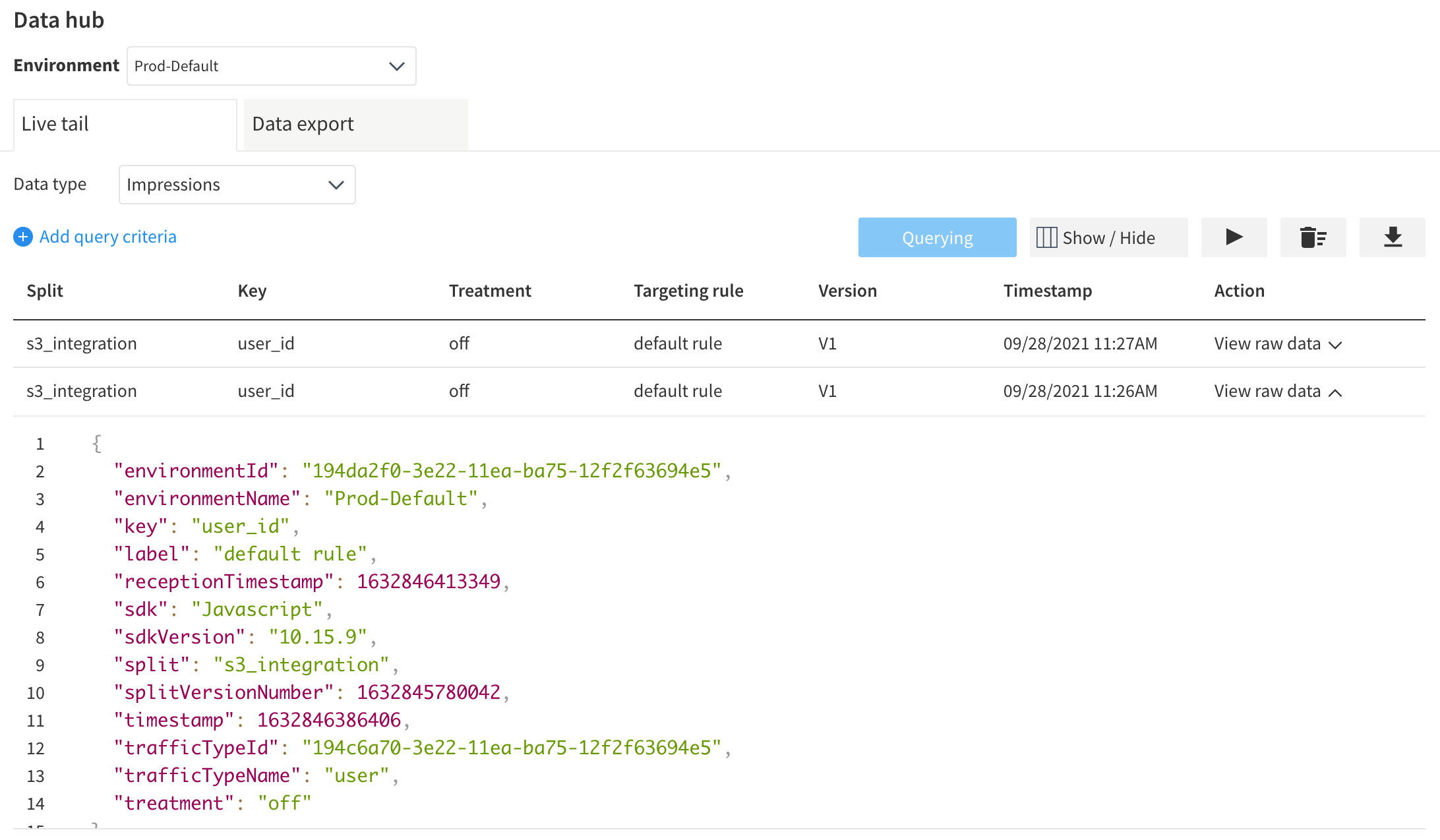
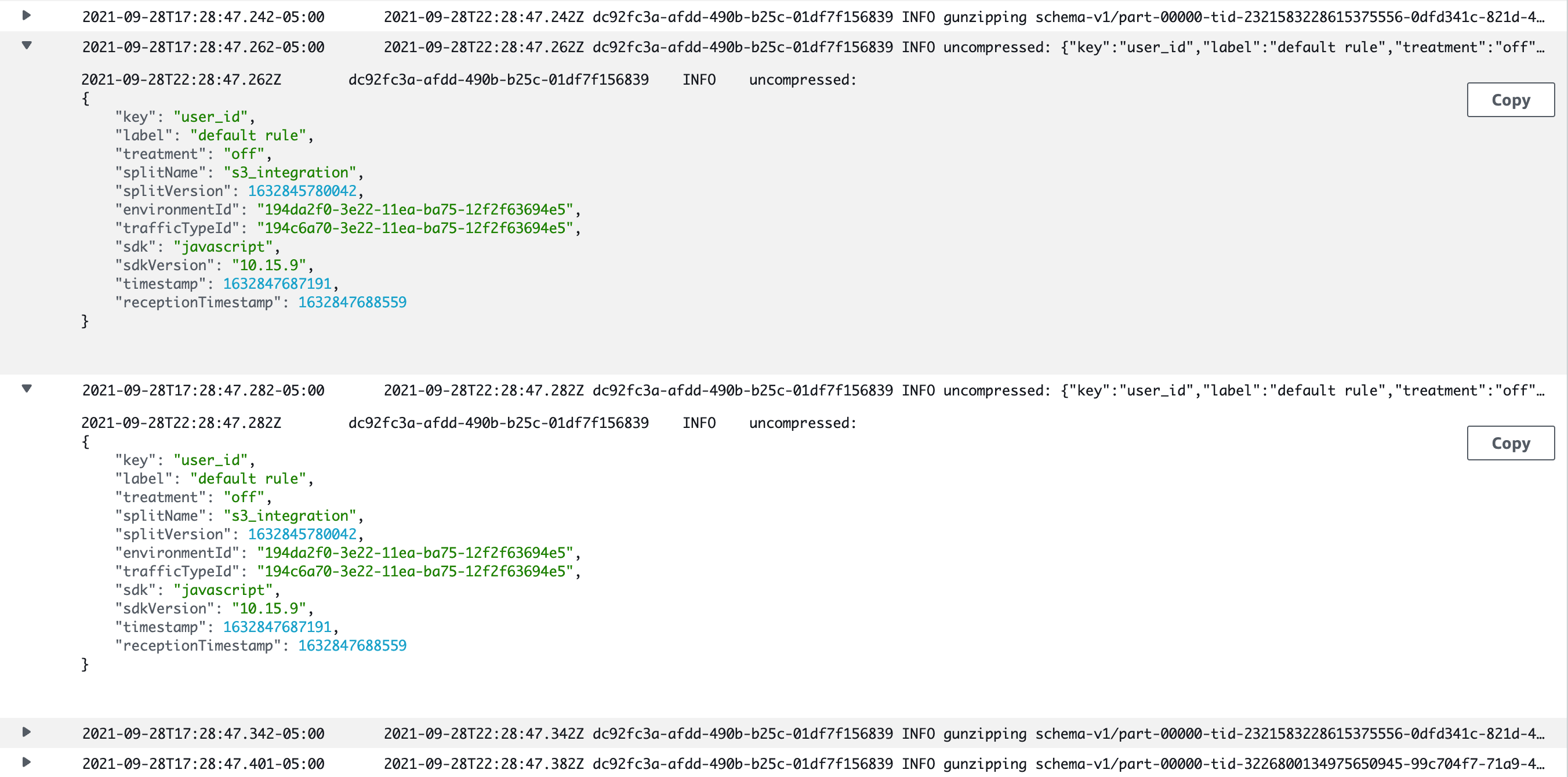
  • Observe your new impressions…
    enter image description here

Setting up S3

Now that you’ve set up Split to capture and send impressions, we move to setting up S3 to catch them. Here, the author assumes his audience to have some sophistication with AWS. If you don’t have access to an AWS account, you will have to consult a colleague before proceeding.

Create a Bucket

In AWS, go to S3 and create a bucket. Call it split-impressions and note which region.

Configure the Bucket in Split

  1. In the Split UI, navigate to ​admin settings​, click ​integrations​, select your workspace, and navigate to the ​marketplace​.
  2. Click ​add​ next to ​Amazon S3​. (You can also click ​_Warehouse_​ under ​_Categories_​ to filter to Amazon S3.)
  3. Under Send Impressions to S3, click Add configuration
  4. Under ​Select environment​, choose which Split environments that will receive S3 data.
  5. Under Paste S3 bucket name, provide the name split-impressions
  6. Leave the write location prefix blank
  7. Select file format JSON
  8. Choose compression format GZIP

Click Save. Go back into your new configuration and copy the Role ARN.

For example:
arn:aws:iam::56366123456:role/databricks-prod

Give the Bucket the Right Permissions

Back in AWS

  1. In the ​Amazon S3 console​, navigate to your S3 bucket.
  2. Under Permissions >Edit bucket policy > Bucket policy​, replace the JSON with the snippet below. Be sure to replace the following parameters in the snippet:
    • {role-ARN-to-be-provided-to-you-by-Split} with the Role ARN generated by Split above.
    • {bucketName} with your S3 bucket name
{
    "Version": "2012-10-17",
    "Statement": [
        {
            "Effect": "Allow",
            "Principal": {
                "AWS": "arn:aws:iam::123546136:role/databricks-prod"
            },
            "Action": "s3:ListBucket",
            "Resource": "arn:aws:s3:::split-impressions"
        },
        {
            "Effect": "Allow",
            "Principal": {
                "AWS": "arn:aws:iam::123546136:role/databricks-prod"
            },
            "Action": [
                "s3:PutObject",
                "s3:PutObjectAcl",
                "s3:DeleteObject"
            ],
            "Resource": "arn:aws:s3:::split-impressions/*"
        }
    ]
}

Find Impressions in Your Bucket

Reload your s3.html page. Check that Live Tail is showing new impressions.

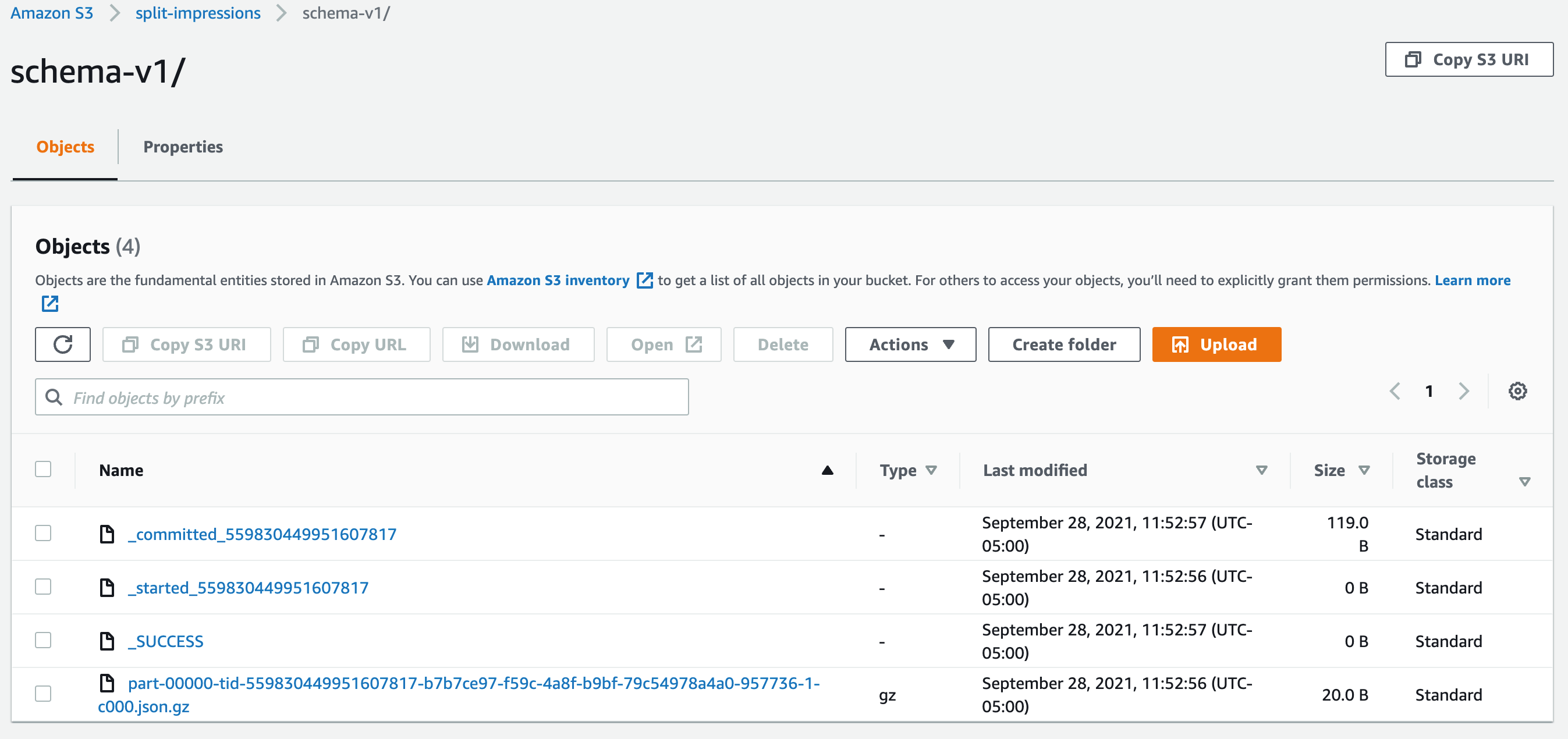
It will take a few minutes for the impressions to be written. If all goes well, your bucket will look like this:
enter image description here

Advanced: Read and Process with a Lambda

Now that the impressions data is in S3, what can you do with it? In the example below, I’ll create a Lambda that can read impressions right out of the S3 bucket into which Split is writing them. It’s up to the reader to decide the best way to fully implement the Lambda: e.g. pass to a database or a business intelligence tool.

I chose to implement the AWS Lambda with node.js and the AWS SDK. On a mac, you can start with with node.js by installing the node.js package manager:
brew install npm

Create an Impressions Reader Lambda

  • Create a directory for your new Lambda to live locally.
  • In your new directory, run:
    npm init
    This will lay down the necessary skeleton for your Lambda. I used two different libraries that must be npm installed:
npm install aws-sdk
npm install zlib

Now you can create the main script. Create a new file called index.js and substitute in your AWS access key and secret access key.

var AWS = require("aws-sdk");
const zlib = require("zlib");

AWS.config.update({
    accessKeyId: "your AWS access key ID",
    secretAccessKey: "your AWS secret access key",
    "region": "us-west-2" // this was mine
}); 

exports.handler = async (event) => {
    s3 = new AWS.S3({apiVersion: '2006-03-01'});

    var params = {
    // just as we named it earlier
      Bucket: "split-impressions", 
    };
       
    let gzipFiles = [];
    await s3.listObjects(params, function(err, data) {
        if (err) { 
            console.log(err, err.stack);
        } else {
            let contents = data.Contents;
            for(const content of contents) {
                if(content.Key.endsWith('.json.gz')) {
                    gzipFiles.push(content.Key);
                }
            }
        }
    }).promise();

    console.log("found " + gzipFiles.length + " gzipped json file...");
    for(const filename of gzipFiles) {
        var objectParams = {
            Bucket: 'split-impressions',
            Key: filename
        }

        await s3.getObject(objectParams, async function(err, data) {
            if (err) {
                console.log(err);
            }
            console.log('gunzipping ' + objectParams.Key);

            await zlib.gunzip(data.Body, (err, buffer) => {
                if(err) {
                    console.log(err);
                } else {
                    console.log('uncompressed: ' + buffer.toString());
                    // once you have parsed the JSON, do with it as you will!
                    // write to another data store, or call an API...
                }
          });
        }).promise();                

        // TODO delete the gipFiles after reading... 
    }


    const response = {
        statusCode: 200,
        body: 'Hello Lambda!',
    };
    return response;
};

Save your index.js and zip up the entire directory in a single file, s3.zip. I do this by habit with the jar command, but you can zip with whatever tool you like:
jar -cvf s3.zip *
This zip needs to be recursive to include all the files that were downloaded when you ran your npm install commands.

Run the Lambda

Now back at the AWS Console, create a new Lambda. You can name it as you like. Upload the Lambda from the Code screen by using the button at the right Upload from…. Choose a .zip file and upload the ZIP you created in the previous step.

Now you can test it with any input (index.js ignores the request). Be sure to visit CloudWatch to check out your logs!
enter image description here

Schedule the Lambda

You can run your Lambda on a schedule. Add a delete operation to the script provided and you’ll clean up after yourself each time you finish parsing.

Summary

Use Split together with AWS for fun and profit! This is a draft article. If you have questions or suggestions, please provide them to the author: david.martin@split.io

Thank you!

Written with StackEdit.

Sending Split Impressions to Amazon S3

Split Loves Flutter

Split Loves Flutter!

Everything you need to know to integrate the two!

What are Flutter and Split?

official_flutter_logo
Split Logo
Flutter is a cross-platform framework for designing beautiful mobile apps. Split is the premier feature delivery platform, feature flags and experimentation. If you’re building your app in Flutter, you can take full advantage of Split’s platform using the step-by-step techniques covered in this article.  Dart is the programming language for Flutter.  It has a lot of advanced features.

With logos so alike, how can’t it be a good fit?

Install Flutter

Flutter can be installed here. Flutter provides Windows, OSX, Linux, and ChromeOS installers. When you’re finished, you should be able to type:
> flutter doctor

This article was last tested with this version of Flutter and Dart.

> flutter --version
Flutter 2.10.2 • channel stable • https://github.com/flutter/flutter.git
Framework • revision 097d3313d8 (2 days ago) • 2022-02-18 19:33:08 -0600
Engine • revision a83ed0e5e3
Tools • Dart 2.16.1 • DevTools 2.9.2

Creating a Flutter app

Create a directory for your Flutter app, e.g. "flutter_workspace".
Again at the command line: 

> flutter create -t app --project-name to_the_dogs /path/to/your/flutter-workspace/to_the_dogs
This will create a brand new application. You can run the app too. Change to your new to_the_dogs app directory and type:
> flutter run
You will see your new app in Chrome

yuki_in_chrome

Running in Chrome is a neat new Flutter trick.  But you want to see your app run in a mobile device!

Install Android Studio

You can either install Xcode from the App Store, or Android Studio. Flutter needs an emulated device in order to run.

Once installed, open your new to_the_dogs app by using the File menu… Open… to_the_dogs directory. Your app’s main.dart will open (Flutter apps are written in the Dart progamming language).

For Android, from the Tools menu… AVD Manager… Click to + Create a Virtual Device. You can create a new virtual device of your choosing.

Once you’ve created your device, pull the menu down that reads no devices and select your device. Your device should appear shortly.

Now you can successfully launch your app at the command line by typing:
> flutter run
Now your new app should appear in the emulator you just picked.  Make changes to the main program file – lib/main.dart – using your favorite text editor, then run again. You can also edit it in Android Studio and run with the green arrow run button.

Jazz it up with an image!

Your new app has a button to press and a basic display showing how many times it has been pressed. Let’s make the app more interesting by adding an image. On line one hundred, between const Text and Text instances, insert a new line of code…

Image(image: NetworkImage('http://www.cortazar-split.com/dog_origin.jpeg')),

It will look like this…

     children: <Widget>[
       const Text(
         'You have pushed the button this many times:',
       ),
       Image(image: NetworkImage('http://www.cortazar-split.com/dog_origin.jpeg')),
       Text(
         '$_counter',
         style: Theme.of(context).textTheme.headline4,
       ),
     ],
Now run it…

> flutter run

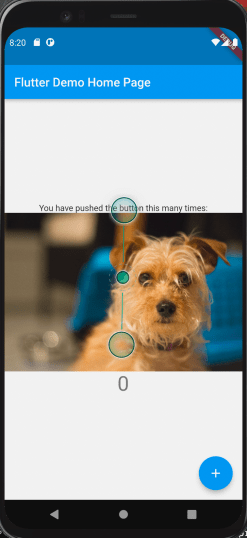
If you nailed the typing, you’ve got a much more handsome screen.

laylaOnPafe
Well done! What if you had used a different image instead? Would you get more clicks? Let’s put a feature flag on that image!

Create a Feature Flag in Split

If you haven’t created a free account, visit the signup page.

  • Once in a the product, create a new split.
  • Name the split multivariant_demo and give it the user traffic type.
  • Add rules to the production environment.
  • You’re not a simple “on” or “off” user. Add a treatment, and names the treatments “red”, “green”, and “blue”.
  • In Attach configuration to your treatments section, switch to JSON format.
    in blue: {"image":"http://www.cortazar-split.com/dog_melancholy.jpeg"}
    in red: {"image":"http://www.cortazar-split.com/dog_origin.jpeg"}
    in green: {"image":"http://www.cortazar-split.com/dog_on_the_couch.jpeg"}
  • Save changes. From the menu next to the Kill button, pull down and select “Syntax”
  • Choose node.js and copy the authorizationKey shown. You will use it in the steps below, so keep it handy. It is your SDK type API key that you will use to install the Evaluator docker image.

That’s great! Back to coding…

Add a dependency… on HTTP

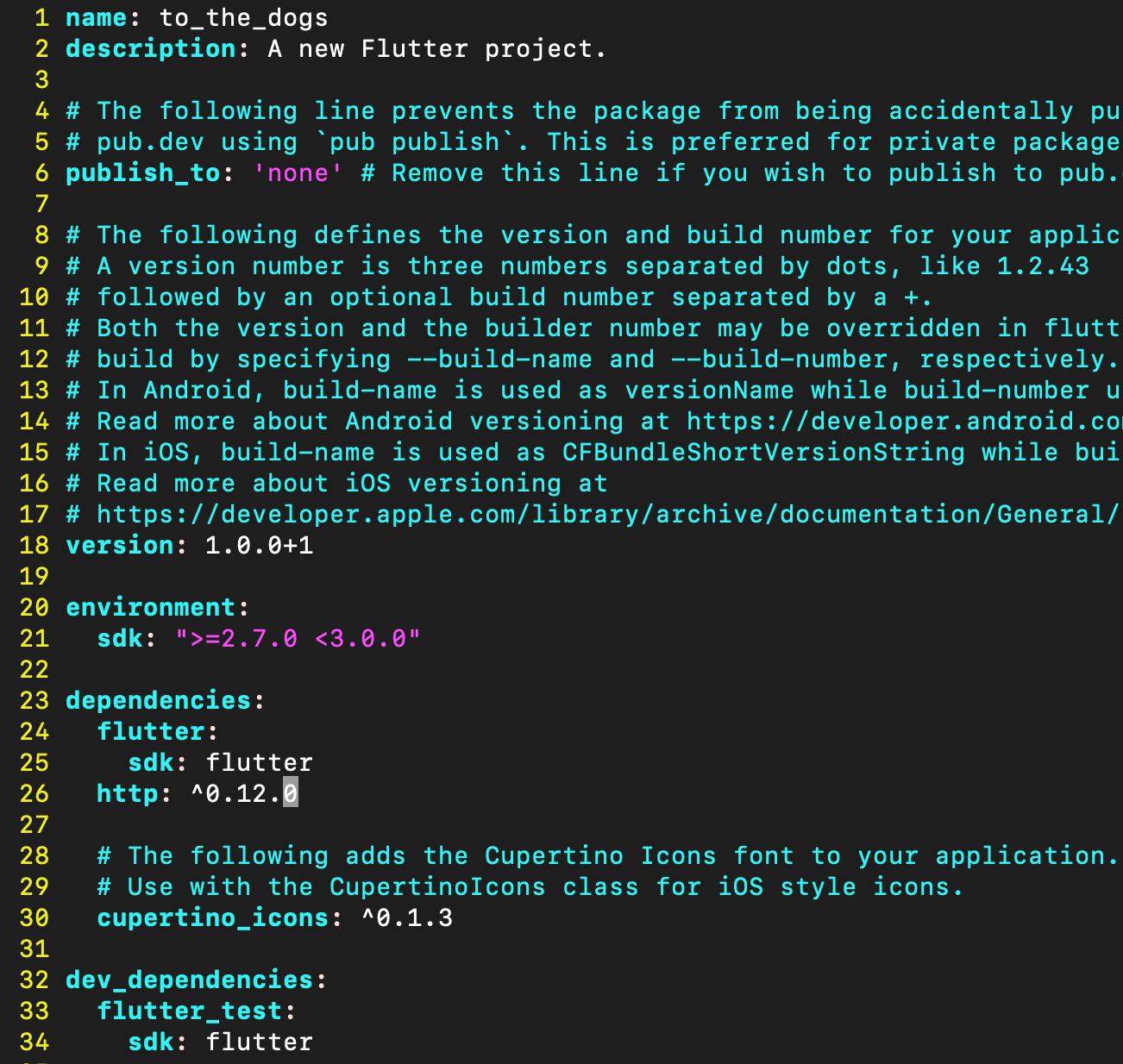
We’re going to need to use an http client, so let’s add a dependency. Flutter keeps its dependencies in pubspec.yaml. Let’s add a dependency for http on line 26: http: ^0.12.0

Now get the new dependency with a new command:
> flutter pub get
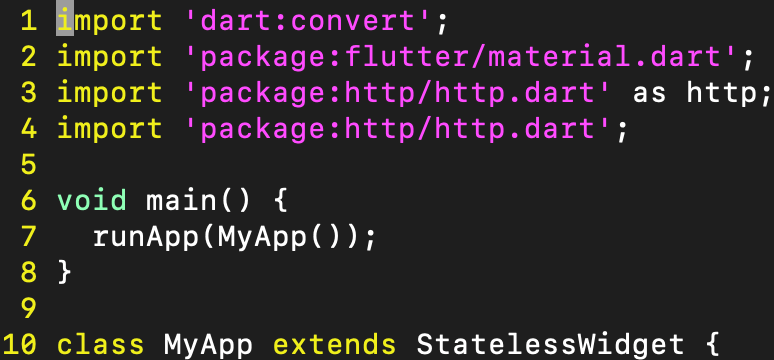
You should also click “pub get” in the upper right corner of your pubspec.yaml screen in Android Studio.  Finally, let’s declare some dependencies in lib/main.dart> line two:
import 'dart:convert';

import 'package:flutter/material.dart';

import 'package:http/http.dart' as http;

import 'package:http/http.dart';

Note that we’ve added no dependencies on any Split software!  Android Studio will complain that the http imports are unused.  That’s OK for now… but you’ll have to run with a special switch…

flutter run --no-sound-null-safety

Building the Future

This is the trickiest step. Flutter’s preferred method of asynchronously loading user interface is with the FutureBuilder. The FutureBuilder is powerful, but it requires a coding leap. Instead of specifying one home screen, we must now specify three: 1) the screen while data is loading, in other words a progress indicator, 2) the screen when the data has loaded properly, and 3) the screen when something has gone wrong, displaying a useful error. Highlight your _MyHomePageState class build method and replace it with the one below.

  
  Widget build(BuildContext context) {
      return FutureBuilder<String>(
        future: _split,
        builder: (BuildContext context, AsyncSnapshot<String> snapshot) {
          List<Widget> children;

          if (snapshot.hasData) { // CASE #1 - data has arrived
            Map<String, dynamic> splitResult = jsonDecode(snapshot.data.toString());
            Map<String, dynamic> splitConfig = jsonDecode(splitResult['multivariant_demo']['config']);
            String imageUrl = splitConfig['image'];
            children = <Widget>[
              Flexible(
                  child: Scaffold(
                    appBar: AppBar(
                      title: Text(widget.title),
                    ),
                    body: Center(
                      child: Column(
                        mainAxisAlignment: MainAxisAlignment.center,
                        children: <Widget>[
                          Image(image: NetworkImage(imageUrl)),
                          Text(
                            'You have pushed the button this many times:',
                          ),
                          Text(
                            '$_counter',
                            style: Theme
                                .of(context)
                                .textTheme
                                .headline4,
                          ),
                        ],
                      ),
                    ),
                    floatingActionButton: FloatingActionButton(
                      onPressed: _incrementCounter,
                      tooltip: 'Increment',
                      child: Icon(Icons.add),
                    ), // This trailing comma makes auto-formatting nicer for build methods.
                  )
              )
            ];
          } else if (snapshot.hasError) { // CASE #2 - error retrieving data
            children = <Widget>[
              Icon(
                Icons.error_outline,
                color: Colors.red,
                size: 120,
              ),
              Padding(
                padding: const EdgeInsets.only(top: 16),
                child: Text('Error: ${snapshot.error}'),
              )
            ];
          } else { // CASE #3 - data hasn't arrived, but no error either... progress indicator!
            children = <Widget>[
              SizedBox(
                child: CircularProgressIndicator(),
                width: 240,
                height: 240,
              )
            ];
          }
          return Center(
            child: Column(
              mainAxisAlignment: MainAxisAlignment.center,
              crossAxisAlignment: CrossAxisAlignment.center,
              children: children,
            ),
          );
        }
    );
  }

At this point, your screen would know how to display, except that the FutureBuilder is called the FutureBuilder for a reason:
future: _split,
You now need to declare _split inside the _MyHomePageState class:

  static http.Client client = http.Client();
  static Future<String> getSplitTreatment() async {
     Response response = await http.get(
          "http://{your IP address}:7548/client/get-treatments-with-config?key=app-id&split-names=multivariant_demo",
          headers: {'Authorization': "foo1234"});

     print("response body: " + response.body);
     return response.body;
  }
  final Future<String> _split = getSplitTreatment();			

You need to substitute the IP address of your machine.
Find your IP address on a mac. Find your IP address on a PC.

And now the http dependency is clear. In a nutshell, the FutureBuilder is waiting for an HTTP GET transaction to retrieve some JSON from Split’s Evaluator. The Split Evaluator is a RESTful interface for evaluating feature flags. This GET says, give me the treatment of a “multivariant_demo” flag for an app with unique identifier ‘app-id’.

But you’re not yet ready to run… there’s nothing listening on your localhost port 7548.

Install Docker Desktop

If you don’t already have Docker ready, install Docker Desktop on Mac. Install Docker Desktop on Windows

Install the Split Evaluator

The Split Evaluator is a node.js microservice (often delivered as a Docker image) that wraps the Split node.js SDK with a RESTful API. Just as shown above, you can issue an HTTP GET to retrieve a feature flag evaluation, including a complex JSON response like the one we parsed here to serve an image URL.

From your command line, run two docker commands:

		> docker pull splitsoftware/split-evaluator
		> docker run -e SPLIT_EVALUATOR_API_KEY={YOUR_SDK_TYPE_API_KEY} -p 7548:7548 splitsoftware/split-evaluator

The Evaluator can do all the same things as the SDK, including batch evaluations of many flags at once. It also supports the track call so you can send on those button clicks for use in an A/B test.
http://localhost:7548/client/track?key=my-customer-key&event-type=my-event&traffic-type=user&properties=\{"major":"1","minor":"2","patch":"14"\}' -H 'Authorization: {SPLIT_EVALUATOR_AUTH_TOKEN}'

Tying it all together

flutter run --no-sound-null-safety

You can now switch images in your app using your split.  To use Flutter with Split, deploy an Split Evaluator. Using features like the FeatureBuilder, build your screens dynamically so they can be monitored for changes in user behavior by alerting and statistically rigorous A/B testing.

If you’re interested in firing up an Evaluator and creating some flags, get in touch with me at david.martin@split.io

Thank you!

Break Condition Not Found

I reach the end of the hallway and grab at the corner with my right hand. I let my momentum carry myself around it. My sneakers describe an arc as they skid into the wall of the new length of corridor. I kneel and turn. Now with both sets of fingers wrapped around the edge, I carefully push my eyes back around the corner to get a look at my pursuer.

Sweat drips down my forehead.

I can see nothing, but I can hear footsteps. I decide they’re coming closer.

Behind me is another long corridor. I can see a door near the end on the left. Maybe this door will be unlocked. I come to my feet and start running.

In flight, it is easy to focus. The rhythm of my heart and the rhythm of my feet are the tempo with which my brain keeps functioning. I have found no exit thus far, but my body hasn’t betrayed me either.

The hallway passes in slow motion. Without any doors or signs to serve as points of reference, it’s as if I am a cartoon running infinitely past stock imagery. Ahead, the door I thought I saw proves to be a mirage, evaporating within seconds. Still, I have no other direction to go.

I can see nothing, but I can hear footsteps.

Now I am approaching an end to the passageway. Another t-junction, just like the last. With a burst of new energy, I decide to try left this time.

I reach the end of the hallway and grab at the corner with my left hand. I let my momentum carry myself around it. My sneakers describe an arc as they skid into the wall of the new length of corridor. I kneel and turn. Now with both sets of fingers wrapped around the edge, I carefully push my eyes back around the corner to get a look at my pursuer.

I can no longer hear anyone approaching, but I can see something. It’s coming closer.

I am in another corridor of considerable gravity. I run for it.

Back in flight, it is easy to focus again. My temples throb and my feet slap at the institutional flooring. I can still think clearly, though I have found no exit thus far. Adrenaline flows through me.

The hallway passes in slow motion. Without any doors or signs to serve as points of reference, it’s as if I am a cartoon running infinitely past stock imagery. Ahead, the door I thought I saw proves to be a mirage, evaporating within seconds. Still, I have no other direction to go.

I can hear no one approaching, but when I look back I can see something.

Finally, I am sure I see something ahead. This hallway has a four-way intersection. I feel fear snaking its way through my gut. There are no signs or doors to give any clue to the exit. Instead of turning, this time I barrel ahead.

In flight, it is easy to focus. The rhythm of my heart and the rhythm of my feet are the tempo with which my brain keeps functioning. I have found no exit thus far, but my body hasn’t betrayed me either.

Without any doors or signs to serve as points of reference, the hallway passes in slow motion. I have no other direction to go.

I reach the end of the hallway and grab at the corner with my right hand. I let my momentum carry myself around it. My sneakers describe an arc as they skid into the wall of the new length of corridor. I kneel and turn. Now with both sets of fingers wrapped around the edge, I carefully push my eyes back around the corner to get a look at my pursuer.

Sweat drips down my forehead.

I can see nothing, but I can hear footsteps. I decide they’re coming closer.

Blog at WordPress.com.

Up ↑