Search

To Have and Have Not

technical musings and more

The Secrets of Great Feature Flags

Feature Flags are Ubiquitous

Martin Fowler began popularizing feature flags in earnest over ten years ago. Modern CI/CD pipelines count on being able to do trunk-based development, and word has gotten out that this is just the beginning of the benefits to feature flags. Many shops have built their own flagging, only to discover that more advanced features are costly to implement. Whether you’re new to feature flags, or considering them for the first time, there is a bewildering number of options available.

This article is not a product review. Instead, Split would like to set the bar for great feature flags. What does a great feature flagging platform include? How does it handle the privacy of its guests? Is it scalable and performant? Does it seamlessly enable experimentation?

Split is in the Cloud

First, Split is a cloud-based feature data platform. At this time, we do not have an on-premise offering. While you can put Split SDKs into an off-the-grid “localhost” mode, this is intended mostly for high volume testing.

When you create and set a feature flag in Split, the Split cloud immediately stages it to the Fastly CDN. Fastly has points-of-presence around the globe. This stages the feature flags for consumption by the Split SDK.

Split SDK

Split offers both server-side and true client-side SDKs. The client-side SDKs include React, Angular, iOS, Android, Flutter, React Native, and Javascript.

The Split client SDKs do something odd. They connect by downloading the feature flags. The CDN enables low latency pulls. Simultaneously, a streaming connection is set up to notify the SDK of any changes to its flags.

Why does Split incur the cost of the download up front? There are three main benefits:

  • Privacy. With the rule defintions local, the SDK can evaluate feature flags without any connection to the Split cloud. This means that private customer information – e.g. age, account balance, or credit score – will never leave their mobile phone or browser. Split doesn’t store private customer information. Other solutions ask to upload user information for evaluation on the server.
  • Performance. Split SDK can evaluate feature flags without network transactions, which makes it more resilient in the face of everyday network interruptions. If a customer walks into a parking structure and loses connectivity, your app will behave properly regardless. Split can also cache the feature flags so that repeat visits load faster than the initial.
  • Experimental integrity. Modern application are not a flat sheet. They have tabs, buttons, turny knobs and other UI controls. If your feature is under one of these controls – “under fold” – then you only want to put customers into an experiment when they’ve actually seen the feature flagged control. Server-side solutions batch evaluate users and put them all into an experiment when only a small portion may have actually seen the feature. Split SDK lets you do a live, just-in-time evaluation, yielding accurate data integrity.

Split SDK Resiliency

The client cache (e.g. local storage) allows the Split SDK to begin evaluating even when the CDN is unreachable. But in worst case scenarios, every feature flag has a “control” block it can use to provide a default treatment to the end user.

On the server-side, Split offers the ability to integrate Split SDK with Redis. The Redis cache is kept up-to-date with the latest feature flag data, courtesy a service called the Split Synchronizer. With Redis available, the SDKs are even less likely to experience an interruption, and load time drops in most cases to a few milliseconds.

The Split Proxy maintains a cache of feature flag data under control of your own infrastructure when connecting from a client-side SDK. With this approach, you don’t have to connect to sdk.split.io at all, but instead can connect to your own sdk.acme.com. Some customers even proxy to Split through their own CDN.

What is the Perfect Feature Flag?

It’s the flag that gets your job done. If you’re content to do database updates against a shared table to toggle flags, you don’t need Split. When you want to target groups of users, launch with a randomized “canary” release, or surgically target users by their private attributes, it can be helpful to have a console and a feature flagging architecture that supports it.

If you want to do experimentation, it’s even more important. The feature flag will govern experimental integrity, and then the feature data platform will harness that data to produce actionable results.

If you’re writing a sorting algorithm, you can choose between saving memory or saving computational complexity. The right choice is the best choice for your purpoes. As you think about feature flags and feature data platforms, make sure you understand your choices, what they provide and what they do not. Then you’ll make an informed decision that will serve you well.


Split, Flutter and Rapid Updates

Rapid Updates?

Split can evaluate a feature flag at any time, but also boasts a streaming service to update your app immediately when a flag has changed. Streaming is the default means of receiving updates from the Split cloud (polling can be used as a fallback measure), but you do have to write a little code to take advantage of updates. This article builds on a previous one to explain how to take full advantage of Split and Split dynamic updates.

What are Split and Flutter?

Split is the premier feature delivery platform, encompassing feature flags, measurement, and experimentation. Flutter is a cross-plaform approach to building snazzy apps.

Split Flutter Plugin

Split has supported Flutter for years, and now it has a native Flutter Plugin. The Split plugin gives you the full SDK experience that you enjoy on other platorms:

  • Client-side Evaluation
    Now private information stays private, on the client-side. Split will never send private attributes back to its cloud.
  • Integration with Flutter staples like the FutureBuilder (read on for details)
  • Dynamic configuration
    Describe your user interface at the Split console, where a product manager might make changes, and see the results in your application without code changes (read on for details)
  • Streaming updates, the main subject of this article
  • … and more you can read about in the official technical documentation.

Introducing Flutter Araki

Flutter Araki is a simple example of using Split with Flutter. You can review, clone, and run the example right from the Github site:

https://github.com/splitio/flutter-araki

You’ll need to sign up for a Split account if you haven’t already got one. Otherwise, I just expect that you’re already familiar with flutter. While flutter supports many IDEs, my examples are at the command line so as to be as universal as possible.

The rest of this article will walk through the Araki example.

Getting Started

Create a new directory and clone the repository.

git clone https://github.com/splitio/flutter-araki

I assume you have flutter on the command line. When you run the app, flutter will ask you to choose between targets.

flutter run

You should get a spinning blue circle. Stop it. The Split service is not available because:

  • We haven’t installed the Split API token
  • The referenced “multivariant_demo” feature flag has not been created.

Adding the Split API Token

To your lib/ directory (where main.dart is located) add a new file called splitApiToken.dart. It’s contents should look like below.

class SplitApiConfig {
	static const  String apiToken = '<your split client-side api token>';
}

You can get a client-side API token from the Syntax button of your feature flag editor screen (under the “…” menu to the right of the KILL button) or the Admin Settings of your Split account (top-left dropdown menu), and there is more coaching in the official documention.

Choose a client-side language, like iOS or Android for a key.

Creating the multivariant_demo split

Split is two-variant, “on” and “off”, by default, but you can create as many variants as you like for this example.

Each config has an “image” and a “text” key. This ultimately determines what Flutter will see in JSON at runtime. Make sure that you give your treatments an “image” URL and a “text”, as these are the values used by the Araki example.

Here are my treatment configs, and you may use them. You will need to change the treatment names from “on” to “blue” and “off” to “red” as well as adding a third treatment for “green”. In the Attach configuration to your treatments section of your multivariant_demo split, cut-and-paste the JSON below into each respective treatment.

For blue... 
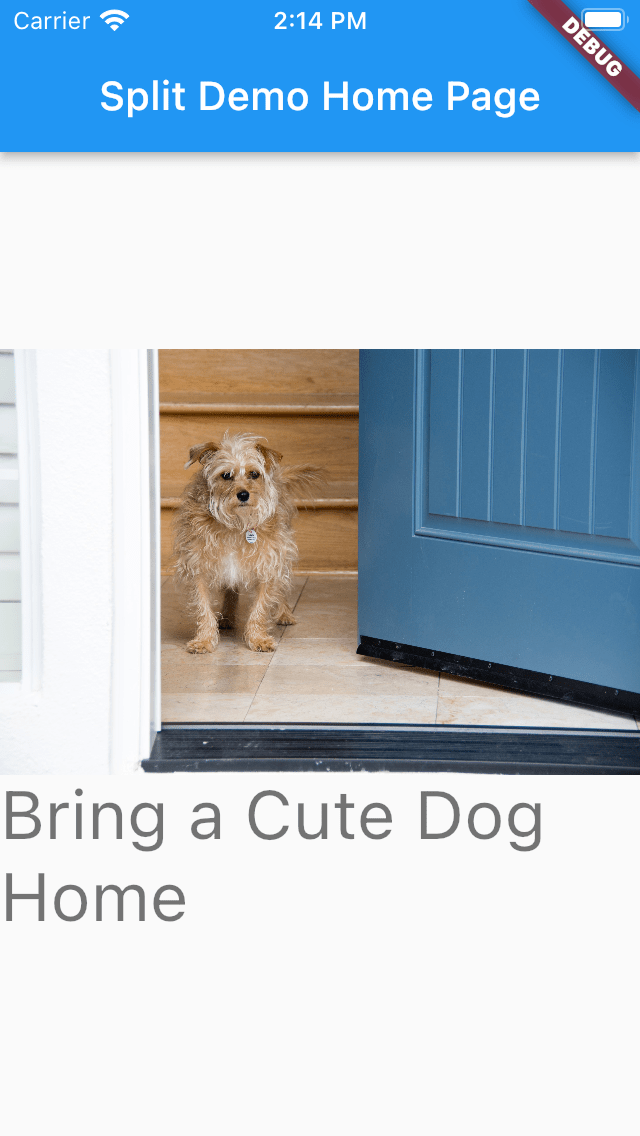
{"text":"Bring a Cute Dog Home","image":"http://www.cortazar-split.com/dog_by_the_door.jpeg"}

For red...
{"text":"Adopt a  Dog","image":"http://www.cortazar-split.com/dog_origin.jpeg"}

For green...
{"text":"This dog is chillin'","image":"http://www.cortazar-split.com/dog_on_the_couch.jpeg"}

Run again!

flutter run

Now you should be looking at one of your images captioned by your text. If you used my example, your screen will be showing a dog.

With streaming enabled, you can change the dog by changing treatments. Just change the default treatment from red to green and you’ll see a new dog show up.

Streaming takes about a minute to enable, so if you switch immediately after launch you may have to wait a few seconds for the change. Once streaming is fully enabled, the treatment changes should take effect immediately.

How does it work?

Flutter features a FutureBuilder that is perfect for use with Split.

  
  Widget build(BuildContext context) {

    return FutureBuilder<SplitResult>(
      future: _splitResult,
      builder: (BuildContext context, AsyncSnapshot<SplitResult> snapshot) {
        List<Widget> children;
        
        if(snapshot.hasData) {
           ... what to show when data is available ...
        else if (snapshot.hasError) {
           ... what to show when there's a problem ...
        } else {
           ... show a progress indicator... spinning blue circle? ..
        }

The FutureBuilder is waiting for its snapshot to become available. The snapshot is returned from the future, which is a _splitResult.

Future<SplitResult> getSplitTreatment() {  
    Completer<SplitResult> resultCompleter = Completer();  
  
  _split.client(onReady: (client) async {  
      print("client is ready, calling getTreatment");  
  resultCompleter  
        .complete(client.getTreatmentWithConfig('multivariant_demo'));  
  }, onReadyFromCache: (client) {  
      print("onReadyFromCache!");  
  }, onUpdated: (client) async {  
      print("onUpdated!");  
  SplitResult result = await client.getTreatmentWithConfig('multivariant_demo');  
 var json = jsonDecode(result.config!);  
  print(json);  
  print("adding JSON to stream controller");  
  streamController.add(json);  
  }, onTimeout: (client) {  
      print("onTimeout!");  
  });  
  
 return resultCompleter.future;  
}

Future<SplitResult> _splitResult = getSplitTreatment();

This getSplitTreatment has more event handling than the one from my earlier article. In particular, Araki is listening for onUpdated. The SDK will fire onUpdated when streaming has picked up a change in the feature flags.

The onUpdated handler retrieves the latest treatment (with config) for our split, then parses the JSON. Finally, it passes the JSON to the streamController.

What is the streamController?

StreamController<dynamic> streamController = StreamController<dynamic>();

We declare it up at the top of the main.dart. Its stream is passed to the MyHomePage constructor.

  
Widget build(BuildContext context) {  
  return MaterialApp(  
    title: 'Split Demo',  
  theme: ThemeData(  
      primarySwatch: Colors.blue,  
  ),  
  home: MyHomePage('Split Demo Home Page', streamController.stream),  
  );  
}

_MyHomePageState has an initState and mySetState function for handling the stream.

class _MyHomePageState extends State<MyHomePage> {  
  int _counter = 0;  
 var _image;  
 var _text;  
  
    
  void initState() {  
    super.initState();  
  widget.stream.listen((json) {  
      print("LISTEN");  
  mySetState(json);  
  });  
  }  
  
  void mySetState(dynamic json) {  
    print ("mySetState");  
  setState(() {  
      _image = json['image'];  
  _text = json['text'];  
  });  
  }

Now, the JSON passed as a streaming event will be received and used to set the _image and _text variables of our main component such that the component automatically refreshes.

Conclusions

Using Split with Flutter is fun and profitable. If you want more Split coaching specifically, please get in touch for more information. david.martin@split.io

Switching Keys

Handling multiple identifiers at the Client

If you happen to be working with Split only on the server-side, you may not be aware of situation where the SDK needs multiple keys. A server-side example:

var treatment = client.getTreatment('susan', 'feature_flag_name');

If Susan is the user you want to evaluate, you pass susan right in the getTreatment call. But on the client-side, getTreatment is different.

var treatment = client.getTreatment('feature_flag_name');

What happened here? The answer is that susan appeared in the SDK configuration.

var factory =  splitio({  
	core:  {  	
			authorizationKey:  'your_split_api_key',  
			key:  'susan'  // unique identifier for your user  
	}  
});

And this is well and good if the only user you need to evaluate for that screen or page is Susan.

When do you need multiple identifiers?

One common situation is to conveniently bridge two Split traffic types, for example user and anonymous. Split is generally used to treat these types of traffic differently, separate flags and experiments. If you’re prepared to evaluate both keys, you can smoothly feature flag all elements of your screen or page.

There are less common situations that are application-specific. If you have identifiers that can be combined with other identifiers, you may want to feature flag the combined identifier. In B2B applications, you might evaluate many partner or store identifiers to produce a single page.

If you think you have one of these situations, you have options.

Using the SDKs to Instantiate Multiple Clients

Split’s documentation has a little section devoted to this:

In Javascript, you can get a new client from the factory:

const anon_client = factory.client('susan_anon_id',  'anonymous');`

You don’t even need to specify traffic type (it would be used if you did a ‘track’ call). You can switch users with simply:

const anon_client = factory.client('susan_anon_id');

A more complete example of managing logged in and anonymous ids?

	function uuidv4() {
      return 'xxxxxxxx-xxxx-4xxx-yxxx-xxxxxxxxxxxx'.replace(/[xy]/g, function(c) {
        var r = Math.random() * 16 | 0, v = c == 'x' ? r : (r & 0x3 | 0x8);
        return v.toString(16);
      });
    }

    const wallet = {
    	user_id: 'dmartin',
    	anonymous_id: uuidv4()
    }

	var factory = splitio({
	  core: {
	    authorizationKey: 'your_split_api_key',
	    key: 'placeholder'
	  }
	});

	const manager = factory.manager();
	manager.once(manager.Event.SDK_READY, function() {
		let splitViews = [
			manager.split('anonymous_split'),
			manager.split('user_split')
		];

		let anonSplits = [];
		let userSplits = [];
		for(const view of splitViews) {
			if(view.trafficType === 'anonymous') {
				anonSplits.push(view.name);
			} else if (view.trafficType === 'user') {
				userSplits.push(view.name);
			} else {
				// unexpected traffic type
			}
		}

		const anonClient = factory.client(wallet.anonymous_id);
		anonClient.on(anonClient.Event.SDK_READY, function() {
			for(const split of anonSplits) {
				console.log('anonymous = ' + split + ':' + anonClient.getTreatment(split));
			}			
		});

		const userClient = factory.client(wallet.user_id);
		userClient.on(userClient.Event.SDK_READY, function() {
			for(const split of userSplits) {
				console.log('user = ' + split + ':' + userClient.getTreatment(split));
			}			
		});	
	});

Note that I have called SDK_READY callback after switching keys. You need this to make sure the SDK has updated properly.

Are all SDKs the same?

No, they’re not.

Some SDKs, like Flutter, ask that you instantiate new SDK instances for each key. When you do this, be sure to use a unique Split API key for each instance; it’s important to how Split keeps track under-the-hood.

Check the SDK documentation linked above for your platform to get final word.

Do I have any other options?

You can choose to use the Evaluator, or you can do the feature flag evaluations on the server-side.

Using the Evaluator involves replacing your SDK usage with HTTP transactions. You host the Evaluator locally, so it is likely to be high performance and secure, but a different network architecture from the SDK. The Evaluator is popular in situations where no SDK is available, but it is feature equivalent to the SDK, so you don’t miss out on any Split features by using it. Each Evaluator transaction can use an entirely different key.

Server-sider evaluation is a final option. If you want to evaluate not just two, but dozens and dozens of different keys, the computing pattern is well served by server-side SDK. As shown at the beginning of the article, a server-side evaluation can take a different key each time. By building a small service or proxy around your multiple evaluations, the client can call the server for the expected results. The convenience of this approach is a function of development practices and network architecture (if calls between the client and server are fast, this tends to be more attractive).

Final Thoughts

If you need to handle many keys on the client-side, you have a variety of options available. Keeping it on the client is usually the best approach, but if you have special needs to handle many keys at once, you might want to go with a hybrid approach – SDK and Evaluator – or create proxy services on the server-side to handle the high volume.

In my own experience, you can manage about a half dozen or so SDK instances. If you are on a platform where the SDK lets you swap keys, you can reach around a hundred or more keys (sometimes with warnings).

When you need that many keys or more, I go with a “hybrid” SDK + Evaluator approach. The SDK keeps a streaming connection open for updates on any changes to the flags. Then I evaluate all keys against the a Split Evaluator instance. With this approach, I can do more than five hundred keys, maybe even a thousand without too much delay. This can be compelling when the display is live updating in response to the flag evaluations.

This is an art and not a science, so consult your Split expert with questions!

DBM
david.martin@split.io

Split with Redis on Azure Cloud

Using the Split C# SDK with Redis on the Azure Cloud

Split is the premier feature delivery platform. Split can enhance performance and reliability of its SDK on the server-side by having customers deploy a Redis instance and a Split Synchronizer service to keep it continually up-to-date.

Azure allows creating a Redis cache, and deploying the Split Synchronizer service (details below). Develop an Azure Function in Visual Studio, include the right Split packages, and you’ll have a function that uses Redis to initialize for feature flagging.

Using Redis lowers the latency of obtaining feature flag data, and also shelters the application code from network interruptions. You can also use the traditional CDN approach to obtaining feature flag data, in which case you would skip the steps for installing Redis and Split Synchronizer.

Installing Redis

From your Azure Portal, create an Azure Cache for Redis. Make sure your cache is in the same location as where you plan to deploy your Azure Function. I used Central US and my Redis cache was called split-dbm. My Redis hostname was split-dbm.redis.cache.windows.net and default port 6379.

Go under Access keys and copy your primary key. You’ll use this a couple of times later.

When your Redis instance is open for business, you can install the Split Synchronizer.

Installing Split Synchronizer

You can install the Synchronizer a variety of ways, as covered in the official documentation:
– Using docker with or without kubernetes
– Platform-specific binaries
– Building from source

Synchronizer is a Go application, and few customers build it from source. For Azure, I created a new virtual machine specifically for Synchronizer and gave it a ubuntu operating system. If you use Windows instead, you can download the Synchronizer from the link in the official documentation.

On a linux command line:

`curl -L -o install_linux.bin 'https://downloads.split.io/synchronizer/install_split_sync_linux.bin'  && chmod 755 install_linux.bin &&  ./install_linux.bin`

This should get you a split-sync binary. Create a default config file, like this one (spliti.azure.config.json):

split-sync -write-default-config config.json

Now edit in your own parameters:

{
"apikey": "<your split server-side api key",
"ipAddressEnabled": true,
"initialization": {
"timeoutMS": 10000,
"forceFreshStartup": false
},
"storage": {
"type": "redis",
"redis": {
"host": "xxx.xxx.xxx.xxx",
"port": 6379,
"db": 0,
"password": "<your redis password>",
"prefix": "",
...

There’s more, but important ones are at the top:

  • apikey is a Split server-side API key

You can get a server-side Split API key by opening (in Split console) one of your feature flag definitions for the right environment (prod, qa, dev, etc.) and selecting the Syntax button from the menu next to the KILL button. Go to .NET and copy the key you find generated.

The environment you choose is critical because the Synchronizer is tied to only one environment.

  • Redis host
    You should be able to use the fully qualified domain name, or the IP address of Redis.
  • Redis port
    Default is 6379
  • Redis db
    If you don’t know, it’s probably zero.

You can have many synchronizers (environments) sharing a single Redis instance by setting the prefix. I leave it with a blank default.

Then you can start the Synchronizer using a script like this one:

#!/usr/bin/bash
set -x
split-sync -config splitio.azure.config.json

Sample output (truncated):

[Split logo in ascii]
Split Synchronizer - Version: 5.1.0 (05b66c6)

[GIN-debug] [WARNING] Running in "debug" mode. Switch to "release" mode in production.
- using env: export GIN_MODE=release
- using code:  gin.SetMode(gin.ReleaseMode)
[GIN-debug] GET  /admin/dashboard  --> github.com/splitio/split-synchronizer/v5/splitio/admin/controllers.(*DashboardController).dashboard-fm (1 handlers)
[GIN-debug] GET  /admin/dashboard/segmentKeys/:segment --> github.com/splitio/split-synchronizer/v5/splitio/admin/controllers.(*DashboardController).segmentKeys-fm (1 handlers)

Now, to double check, act as a redis client from your Synchronizer’s VM. You have to use the AUTH command and provide the password you saved when you installed Redis earlier.

$ telnet foo.redis.cache.windows.net 6379

Trying 40.77.8.217...
Connected to foo.redis.cache.windows.net.
Escape character is '^]'.
AUTH <your Redis password>
+OK
keys *
*22
$33
SPLITIO.split.uhd_super_streaming
$19
SPLITIO.split.loans
...

Typing

keys *

… after you’ve authenticated should dump a list of your feature flags. I have a few dozen; you may only have a few. But look for your feature flag names.

If Redis is empty of keys, the Synchronizer isn’t talking to it. You may need to tinker with the network configuration of your Synchronizer’s VM to open port 6379 to Redis.

If everything looks good, you can nohup it and move on.

nohup split-sync -config splitio.azure.config.json &

Building the Azure Function

Experiments with building at the portal itself were frustrating. Use Visual Studio.

It is hard describe in writing the steps to take with the GUI, but these are the important ones:

  • Create a new Azure Function
  • Select the HTTP Trigger

You can publish this function to the Azure cloud and test it from the portal. It expects an input like:

{
  "name": "Layla"
}

If your function prints out a happy response, continue by adding Split.

using System;
using System.IO;
using System.Threading.Tasks;
using Microsoft.AspNetCore.Mvc;
using Microsoft.Azure.WebJobs;
using Microsoft.Azure.WebJobs.Extensions.Http;
using Microsoft.AspNetCore.Http;
using Microsoft.Extensions.Logging;
using Newtonsoft.Json;
using Splitio.Services.Client.Classes;

namespace VitaminC
{
    public static class VitaminC
    {
        [FunctionName("VitaminC")]
        public static async Task<IActionResult> Run(
            [HttpTrigger(AuthorizationLevel.Function, "get", "post", Route = null)] HttpRequest req,
            ILogger log)
        {
            log.LogInformation("C# HTTP trigger function processed a request.");
            // var config = new ConfigurationOptions();
            long startTimeInMillis = DateTimeOffset.Now.ToUnixTimeMilliseconds();

            var cacheAdapterConfigurationOptions = new CacheAdapterConfigurationOptions
            {
                Type = AdapterType.Redis,
                Host = "split-dbm.redis.cache.windows.net",
                Port = "6379",
                Password = "<redis password here>",
                Database = 0,
                ConnectTimeout = 5000,
                ConnectRetry = 3,
                SyncTimeout = 1000,
                UserPrefix = ""
            };
            var config = new ConfigurationOptions
            {
                Mode = Mode.Consumer,
                CacheAdapterConfig = cacheAdapterConfigurationOptions
            };

            // var config = new ConfigurationOptions();

            var factory = new SplitFactory("<your split server-side api key>", config);
            var sdk = factory.Client();

            try
            {
                sdk.BlockUntilReady(3000);
                long endTimeInMillis = DateTimeOffset.Now.ToUnixTimeMilliseconds();
                log.LogInformation("SDK ready in " + (endTimeInMillis - startTimeInMillis) + "ms");
            }
            catch (Exception ex)
            {
                Console.WriteLine(ex);
            }

            log.LogInformation("dmartin treatment? " + sdk.GetTreatment("dmartin", "new_onboarding"));

            var result = sdk.GetTreatmentWithConfig("dmartin", "multivariant_demo");
            log.LogInformation("split json? " + result.Config);

            string name = req.Query["name"];

            // bool success = client.Track(name, "user", "function_triggered");

            string requestBody = await new StreamReader(req.Body).ReadToEndAsync();
            dynamic data = JsonConvert.DeserializeObject(requestBody);
            name = name ?? data?.name;

            string responseMessage = string.IsNullOrEmpty(name)
                ? "This HTTP triggered function executed successfully. Pass a name in the query string or in the request body for a personalized response."
                        : $"Hello, {name}. The treatment is {result.Treatment}.\n {result.Config}";

            return new OkObjectResult(responseMessage);
        }
    }
}

Note that my namespace, function, and class name are all “VitaminC”. You can leave that part of your code alone and swap only the body of the trigger function. Remember to insert your own Redis password (you captured it during install) and create a new Split server-side API key. You can get a server-side Split API key by opening one of your feature flag definitions for the right environment (prod, qa, dev, etc.) and selecting the Syntax button from the menu next to the KILL button. Go to .NET and copy the key you find generated.

Then add using Splitio.Services.Client.Classes;. You can find this discussed on the official .NET SDK documentation page.

Finally, you must Nuget the Splitio and Splitio.Redis packages (v7.0.1 at time of writing). At this point, all compilation errors should disappear.

Build locally to check for hidden errors, then publish and test!

Troubleshooting

You should be able to telnet to port 6379 of your redis host from your Synchronizer virtual machine. This lets you test that the port is open, and also verify that Synchronizer has begun writing flags to Redis.

Managing the Splitio and Splitio.Redis dependencies proved impossible for me on the portal itself (using function.proj). Build and publish your Azure functions from Visual Studio.

Written with StackEdit.

On Balance: Client and Server-Side Evaluation

On Balance: Client and Server-Side Evaluation

When it comes to feature flags, there are several different approaches to evaluation. This article explains the costs and benefits of each approach.

Who is Split Software?

Split Software is a market leading feature delivery platform. This includes more than a dozen supported languages; twice as many integrations with popular tools like Segment, mParticle, and Google Analytics; and an experimentation engine that produces statistically significant impact analysis.

What does client and server-side evaluation mean?

When you evaluate a feature flag, you’re asking “For this user (and maybe some data about them), should the feature flag be on or off?”

In practice, “on” or “off” doesn’t have to be binary at all. But the basic principal is the same. You ask Split, “Should I give this user the feature?” and Split answers appropriate to the rules you’ve set.

Client-side evaluation is when this question is asked from a browser or mobile device, like Chrome, Android or iOS. Server-side evaluation is when you ask this question on the backend, usually with languages like Python, Go, or node.js

Split supports both.

Most vendors only support server-side evaluation. While flexible, it misses some key capabilities that client-side evaluation provides. In practice, many customers will take a hybrid approach.

Let’s explore client-side evaluation some more…

Client-side Evaluation

To accomplish client-side evaluation, Split SDK downloads the feature flags to the device. This has a cost (in milliseconds), but it’s mitigated by virtue of flag data being hosted at the Fastly CDN. This guarantees a low latency pull from locations around the globe. The flag data can also be cached by the client for a faster startup on second, third, fourth visit, etc. You can even declare a filter at the client to limit which flags you download, though benchmarks have shown that number of flags is not significant.

Why take the hit up front? The primary reason is that flag evaluation can become an activity local to the client (browser or mobile device). There is no network transaction associated with evaluating a Split flag. If you must rely on the backend for feature flag evaluation, you either have chatty network activity or you evaluate everything in batch during render, ruining your experiments (more about this in a moment).

If you’re client is evaluating locally, you get more than just network benefits. You can also keep any user data private and secure. For example, a flag that checks the user’s age can provide the Split SDK with this very private information and Split will use it only to evaluate the flag, and never send it to the Split cloud. This makes client-side evaluation popular with organizations that care about privacy.

“Wait,” you say, “…you could just evaluate that private data on the server-side.” That’s true, but you miss out on other client-side benefits. Keep reading, but first a little more about server-side evaluation.

Server-side Evaluation

Server-side evaluation is like client-side, but it can be faster. Split ships a dockerized Split Synchronizer that can pull feature flag data into a Redis instance or cluster. Then, server-side SDK can use Redis instead of the CDN used by client-side. This yields lightning fast serverless functions and the like, making server-side evaluation the approach of choice for customers that are flagging code on the backend.

What are the other differences then?

Client-side Evaluation for Experiments

Some applications are a simple sheet of controls and content. This is rare, however, as modern applications can feature complex hierarchies of content and controls. Think of an app that has a main page with some arrows on it to show more content and controls, like a dashboard with a section for setting up alerts. The alerts are out of view when the dashboard loads.

If you’re using feature flags with such an app, you might want to flag a new feature in the alert controls. In theory, either client or server-side evaluation will work. There is a practical problem though. Namely, if you have ten thousand users load your dashboard, only one thousand of them might look at the alert controls. The ten thousand are “top of the funnel”, and the alert control display’s one thousand are “bottom of the funnel”.

If you evaluate on the server-side, you will probably just render all the flags on the page before you send it to the user. If you do, you have effectively said, “Ten thousand users saw the alert control!” and now your experiment results are watered down and incorrect. If you wait to evaluate the flag until the user looks at the alert control, the experiment sees just the one thousand users that actually saw the feature and you’re truly looking at impact. The client-side evaluation can accomplish this readily.

This may seem like a small thing, but the pernicious erosion of your imact analyses will result in misdirected feature decision making. You could try to do just-in-time evaluation at the server, but the network becomes very chatty and you’re essentially re-implementing Split’s client-side architecture. Why not just use a battle-tested, performant one?

And now, for something completely different…

Split has a third option. The Split Evaluator The Evaluator is a RESTful wrapping of the Split SDK such that a client can avoid using an SDK entirely. Instead, the clients use an HTTP client, available in virtually every language, to “curl” an HTTP get from the Evaluator. You’re still asking, “should this user get the flag?” but you’re asking on port 80 in HTTP and getting back a JSON response. The Evaluator is popular with customers that don’t have or don’t want to put an SDK into their application.

In the context of our discussion, the Evaluator could be called from either the server or the client side. A single transaction can return evaluations for many flags in batch. You can easily scale Evaluator instances behind a load balancer and deploy them in various, network-friendly locations.

To return to the main discussion…

On Balance: which one do I choose?

The answer is whichever best fits your requirements. In some situations, you’ll want to stick with server-side evaluation, while in others the flexibility of client-side evaluation is necessary to limit network chatter and enhance experimentation ability.

Humbly, it is essential that both options are available, and you should seek out vendors that do both. The Evaluator is extra credit.

A final note…

To do client-side evaluation, you need to download the flag data.

In principle, a malicious third party could learn something interesting from flag rules. “Hey, they’re giving this feature to thirty-something mac users in Peoria!” Or, simply, “What’s this new feature I can’t see?”

First, 95%+ of feature flags are just against the user id, or key as Split calls it. We can answer if a flag is on or off with no more data than that. This means that most flags, if named appropriately, will have nothing to reveal to a third party.

“Named appropriately” is best explained with an analogy. When Tom Cruise is filming Mission Impossible XIX, he doesn’t have signs up on the street saying that they’re filming Mission Impossible. The signs all say, “Now filming Terms of Endearment 3” and the production traffic keeps sliding right on by. If this seems like a hassle, consider that the feature flag names show up in client-side code, even if the evaluation is going to be on the server-side. Server-side evaluation has to make a network call from the client-side, and it does it with the flag name. Exposure is exposure, so if this is a concern you should name your flags appropriately.

Splitting Kubernetes

Splitting Kubernetes

Kubernetes can be difficult to learn, harder to master. Split also has a few twists and turns. Can we get an application that uses a Split SDK to run in a Kubernetes cluster?

Yes, we can. This article is aimed at being the “simplest possible” set of steps to accomplish this.

Pre-requisites

I run OSX. To run kubernetes on OSX, I used a set of underlying technologies: docker, virtual box, minikube, and kubectl. You can find discussion of installing these pieces in an article, How to Install Kubernetes on Mac.

You also need to have node.js installed (npm and node commands, etc).

After your installation work…

minikube start
kubectl api-versions

If you’ve followed through the installation in the article, you’re prepared to create a new application.

Write your application

In a split-server/ directory, create a new node app.

npm init
npm install --save @splitsoftware/splitio@10.20.0

Or whatever version is latest on the node.js SDK help page.

My sample application just listens on port 7081 and returns some simple HTML. Copy this into an index.js

var http = require("http");

http.createServer(async function (request, response) {
    response.writeHead(200, {'Content-Type': 'text/html'});
    const SplitFactory = require('@splitsoftware/splitio').SplitFactory;
    const factory = SplitFactory({
        core: {
            authorizationKey: 'your split api key'
        }
    });
    let body  = "<html><head><title>Sample Split Page</title></head><body bgcolor=\"white\">";
 
    const attributes = {
        region: 'US'
    };
    const client = factory.client();
    await client.ready();

    const result = client.getTreatmentWithConfig('userid', 'multivariant_demo', attributes);
    console.log(result.treatment);
    const json = JSON.parse(result.config);
    console.log(JSON.stringify(json));	

    body += "<img style=\"width: 60%\" src=\"" + json.image + "\"/><p style=\"font-size: 40px\">" + json.text + "</p>";
    body += "</body></html>";

    response.write(body);
    response.end('');

}).listen(7081);

console.log('Server running at port 7081/');

Edit in your server-side Split API authorization key.

This application uses a dynamic config from a split called “multivariant_demo”. You can use whatever split you like. The app expects each treatment of the split to have a “text” and “image” field. Text can be any string, it’s printed in a paragraph tag. The “image” is expected to be a valid URL pointing to an image file.

For example for a split with red, green and blue treatments:

blue: {"text":"Bring a Pet Home","image":"http://www.cortazar-split.com/dog_melancholy.jpeg"}
red: {"text":"Adopt a  Dog","image":"http://www.cortazar-split.com/dog_origin.jpeg"}
green: {"text":"This dog is chillin'","image":"http://www.cortazar-split.com/dog_on_the_couch.jpeg"}

You can test your app…

node index.js

It prints that it is running on port 7081. If I use my browser to visit http://localhost:7081, I get a dog with text under it.

Dockerize the app

First, you have to create a docker image. To do this, you need to write a Dockerfile.

# syntax=docker/dockerfile:1

FROM node:18.4.0
ENV NODE_ENV=production
WORKDIR /Users/davidmartin/kube-workspace/split-server

COPY ["package.json", "package-lock.json*", "./"]
RUN npm install --production
COPY . .

EXPOSE 7081 

CMD [ "node", "index.js" ]

You’ll have to change your WORKDIR to reflect your own path to the split-server directory (in which index.js is located).

On the Very Idea of a Docker Repository

At this point, there was a great fork in the path for me. Instructions were saying, “Go ahead and start a local directory! It’s no big deal!” But other examples showed using a public repository. I thought, “my stuff is just for me; I’ll stay local…”

It isn’t hard to start a local directory, tag and push to it. The problem is that Kubernetes by default insists on using HTTPS to pull images from the directory. The local directory can apparently be SSL enabled, but it was very complicated. Couldn’t get that to work. Instead, you can introduce the notion of an “insecure registry” to both docker and minikube… 192.168.4.26 was my mac’s IP address.

~/.docker/daemon.json

{
  "insecure-registries" : [ "192.168.4.26:5000" ],
  "debug" : true,
  "experimental" : false,
  "builder" : {
    "gc" : {
      "defaultKeepStorage" : "20GB",
      "enabled" : true
    }
  }
}

Docker can also edit the daemon.json from the UI component in the system tray.

And when starting minikube…

minikube start  --driver=docker --insecure-registry="192.168.4.26"

The problem is that, gosh darn it, there must have been one more place I didn’t find… because kubernetes always insisted it had failed to pull the image because the repository responded HTTP.

I had to give up on local repository.

hub.docker.com

Sign up for a free account.

Create a new repository. I had username dbmartin00 and repository split-server

Build and push the image to docker hub…

docker build -t dbmartin00/split-dbm .
docker push dbmartin00/split-dbm

Now you’re ready for the land of kube.

Create your service and pod description

This is done with a single file I called split-server.yaml

apiVersion: v1
kind: Service
metadata:
  name: split-server
spec:
  selector:
    app: split-server
  ports:
    - port: 7081
      targetPort: 7081
  type: LoadBalancer
---
apiVersion: apps/v1
kind: Deployment
metadata:
  name: split-server
spec:
  replicas: 1
  selector:
    matchLabels:
      app: split-server
  template:
    metadata:
      labels:
        app: split-server
    spec:
      containers:
        - name: app
          image: dbmartin00/split-dbm
          ports:
            - containerPort: 7081
          env:
            - name: SPLIT_API_KEY
              value: your_split_api_key
          imagePullPolicy: Always

The first section describes a load balancer service. Then a Deployment descriptor. The heavy lifter here is the image name. This is going to be pulled from hub.docker.com

Update your_split_api_key if you’re going to bring your authorization key into the app by environment variable.

Start minikube

minikube start --driver=docker

This takes a minute and has colorful icons. Afterwards you can

minikube status

And get back a bunch of thumbs up.

Now, engage in the act of creation!

kubectl create -f split-server.yaml

Check on yo’ server!

kubectl describe pod split-server

You should see output something like this…

Type  Reason Age From Message
----  ------ ----  ---- -------
Normal  Scheduled  45m default-scheduler  Successfully assigned default/split-server-7544b6fcd4-hhcl2 to minikube
Normal  Pulling  45m kubelet  Pulling image "dbmartin00/split-dbm"
Normal  Pulled 44m kubelet  Successfully pulled image "dbmartin00/split-dbm" in 1.863877267s
Normal  Created  44m kubelet  Created container app
Normal  Started  44m kubelet  Started container app

If you don’t see “Successfully pulled image”, you’re probably in trouble.

Once, I had to use this command to remove some taints.

kubectl patch nodes minikube --patch '{"spec":{"unschedulable": false}}'

Try that and restart your pods:

kubectl rollout restart deployment split-server

If you still have trouble, let’s discuss.

Finish line

If you got this far, you create and started your container app with what looks like success. How do you test it out?

You have to get minikube to poke the port of the service out:

minikube service split-server

With any luck, that gets you a dog in your browser window!

There are a variety of other topics worth discussing, but this is the shortest path to success.

David Brooke Martin
2022

Written with StackEdit.

Split to Dynatrace – Improved Instructions for AWS

Improved Instructions for Deploying split2DynatraceAws

git clone https://github.com/dbmartin00/split2DynatraceAws.git
cd split2DynatraceAws

Edit your src/main/java/attachedRules.json and src/main/java/split2dynatrace.config as discussed in main documentation.

mvn install

This compiles everything with its dependencies. Now there should be a target/ subdirectory with compiled code.

find . -name \*.class
./target/classes/io/split/dbm/integrations/split2dynatrace/TagRule.class
./target/classes/io/split/dbm/integrations/split2dynatrace/LambdaFunctionHandler.class
./target/classes/io/split/dbm/integrations/split2dynatrace/SplitChange.class
./target/classes/io/split/dbm/integrations/split2dynatrace/AttachedRules.class
./target/classes/io/split/dbm/integrations/split2dynatrace/Tag.class
./target/classes/io/split/dbm/integrations/split2dynatrace/Configuration.class

Copy the JAR file created into a lib directory, then zip the directory for upload to AWS.

cp src/main/java/split2dynatrace.config .
cp src/main/java/attachedRules.json .
mkdir lib
cp target/split2dynatrace-1.0.0.jar lib/
zip -r dynatrace.zip *

This wraps up target and src both. That’s OK.

In AWS, I can’t easily capture the specifics, but the steps are as follows:

  • Create a new Lambda for your Java code
  • Choose Java 11 (Corretto)
  • Skip the API Gateway. Instead, give the Lambda a Function URL
  • Auth Type NONE
  • Configure CORS; Add * as an Allow Header
  • Allow method POST

Now upload the dynatrace.zip in the Code screen of your lambda. “Upload from…” “.zip or .jar”…

Change the Runtime settings handler:

io.split.dbm.integrations.split2dynatrace.LambdaFunctionHandler::handleRequest

Copy your function URL into an Audit Log webhook and press to test. At Split, you should get “Test Message Succesful”. You should see this on CloudWatch:

INFO - finished sending annotations to Dynatrace in 5117ms

Written with StackEdit.

Split, Flutter and Fly

What are Split and Flutter?

Flutter is a cross-platform framework for designing beautiful mobile apps. Split is the premier feature delivery platform, including feature flags and experimentation and many integrations. If you’re building your app in Flutter, you can take full advantage of Split’s platform using the step-by-step techniques covered in this article.  Dart is the programming language for Flutter.  It has a lot of advanced features.

With logos so alike, how can’t it be a good fit?

Split Flutter Plugin

Split has supported Flutter for years, but not with a native Flutter Plugin. The Split plugin gives you the full SDK experience that you enjoy on other platforms:

  • Client-side Evaluation
    Now private information stays private, on the client-side. Split will never send private attributes back to its cloud.
  • Integration with Flutter staples like the FutureBuilder (read on for details)
  • Dynamic configuration
    Describe your user interface at the Split console, where a product manager might make changes, and see the results in your application without code changes (read on for details)
  • … and more you can read about in the official technical documentation.

Introducing Flutter Araki

Flutter Araki is a simple example of using Split with Flutter. You can review, clone, and run the example right from the Github site:

https://github.com/splitio/flutter-araki

You’ll need to sign up for a Split account if you haven’t already got one. Otherwise, I just expect that you’re already familiar with flutter. While flutter supports many IDEs, my examples are at the command line to be as universal as possible.

The rest of this article will walk through the Araki example.

Getting Started

Create a new directory and clone the repository.

git clone https://github.com/splitio/flutter-araki

I assume you have flutter on the command line. When you run the app, flutter will ask you to choose between targets. At this time, Split supports Android and iOS targets (so Chrome, MacOS, and Windows will not work). I used an iOS simulator.

flutter run

You should get a spinning blue circle. Kill it. The Split service is not available because:

  • We haven’t installed the Split API token
  • The referenced “multivariant_demo” feature flag has not been created.

Adding the Split API Token

On line 7 of your lib/main.dart, you must add your Split API token.

final Splitio _split = Splitio('<your split client-side api token>', 'key');

You can get a client-side API token from the Syntax button of your split or the Admin Settings of your Split account (top-left dropdown menu), and there is more coaching in the official documentation.

If you use the Syntax button, choose a client-side language like iOS or Android.

Creating the multivariant_demo split

Split is two-variant, “on” and “off”, by default, but you can create as many variants as you like for this example. In the screenshot, I show how I created dynamic config for three variants.

Each config has an “image” and a “text” key. This ultimately determines what Flutter will see in JSON at runtime. Make sure that you give your treatments an “image” URL and a “text”, as these are the values used by the Araki example.  Feel free to borrow my text and URLs.

dynamic config

For easier cut-and-paste:

blue:   {"text":"Bring a Cute Dog Home","image":"http://www.cortazar-split.com/dog_by_the_door.jpeg"}

red:    {"text":"Adopt a Dog","image":"http://www.cortazar-split.com/dog_origin.jpeg"}

green:  {"text":"This dog is chillin'","image":"http://www.cortazar-split.com/dog_on_the_couch.jpeg"}

Run again!

flutter run

Now you should be looking at one of your images captioned by your text. If you used my examples, your screen might look like this dog.

dog on the couch

If you go back to Split, change the treatment, and run flutter again, you will get a new dog.

dog_by_the_door

If you wish, you can actually change the pictures dynamically (without a flutter run) using Split’s streaming updates… covered in a future Flutter article about onUpdated.

How does it work?

First, for the details on how to put Flutter into an app, refer to the official plugin documentation.  You add the Split package to your pubspec.yaml, flutter pub get, and add imports to your application code.

Split SDKs download the flags to the client, a feature called client-side evaluation,  which keeps private information securely on the client-side, and gives some network resiliency to the client (it doesn’t need to perform network transactions with each feature flag evaluation).

How did I use the new plugin in my example?

Flutter features a FutureBuilder that is perfect for use with Split.

  
  Widget build(BuildContext context) {

    return FutureBuilder<SplitResult>(
      future: _splitResult,
      builder: (BuildContext context, AsyncSnapshot<SplitResult> snapshot) {
        List<Widget> children;
        
        if(snapshot.hasData) {
           ... what to show when data is available ...
        else if (snapshot.hasError) {
           ... what to show when there's a problem ...
        } else {
           ... show a progress indicator... spinning blue circle? ..
        }

The FutureBuilder is waiting for its snapshot to become available. The snapshot is returned from the future, which is a _splitResult.

Future<SplitResult> getSplitTreatment() {
    Completer<SplitResult> resultCompleter = Completer();

    _split.client(onReady: (client) async {
      print("client is ready, calling getTreatment");
      resultCompleter
          .complete(client.getTreatmentWithConfig('multivariant_demo'));
    });

    return resultCompleter.future;
}

Future<SplitResult> _splitResult = getSplitTreatment();

This fancy footwork means that Split will resolve its feature flags before retrieving the multivariant_demo split. The SplitResult has a config field with the JSON defined at the Split console.

We use the JSON to define the main screen.

        if(snapshot.hasData) {
          var json = jsonDecode(snapshot.data!.config!);
          print("data: " + json['image']);

          children = <Widget> [
            Flexible(
              child: Scaffold(
                appBar: AppBar(
              title: Text(widget.title),
              ),
              body: Center(
              child: Column(
                mainAxisAlignment: MainAxisAlignment.center,
                children: <Widget>[
                  Image.network(json['image']),
                  Text(
                    json['text'],
                    style: Theme.of(context).textTheme.headline4,
                  ),
                ],
              ),)
            )
          )];
        } 

Once the snapshot data is available, we JSON decode it. Then we can use the image url and the text to define the children below.  You could configure any aspect of your Flutter app using this approach.

Conclusions

Using Split with Flutter is fun and easy. If you want more Split coaching specifically, please get in touch for more information.  david.martin@split.io

Bugsnag and Split: Events Integration

Bugsnag and Split: Events Integration

BugSnag (a SmartBear company) monitors application stability. Split Software is a feature delivery platform.

Past integration work put Split feature flag evaluations into BugSnag errors so that BugSnag customers can see which features their end user was exposed to at the point they encountered an error.

This integration uses a BugSnag webhook to report errors to Split, where they become events eligible for inclusion in A/B test results.

How does it work?

BugSnag has webhooks builtin. By creating a webhook that reports errors, Split can provision a service to listen for errors. The service receives an error, transforms it into a Split event, and sends the event on to Split for use in metrics and experimentation.

The BugSnag errors have rich property information, and not all of it is sent to Split. Some of the properties are flattened in order to be suitable for a Split event.

What do you need to set it up?

For this version of the integration, the Split service is expected to be an AWS node.js lambda. The lambda could also be provisioned as a serverless function in another cloud, but the instructions are not provided. The installer is expected to be a Git user, have access to AWS, and understand how to provision new lambdas. It is also assumed you have both Split and BugSnag accounts.

Installation at the Command Line

The repository is at bugsnag2split.

Create a new directory and clone the integration code into it:

git clone https://github.com/splitio/bugsnag2split.gi

Change into the new bugsnag2split directory. Create a new SPLIT_API_KEY file:

touch SPLIT_API_KEY

Create a new server-side API token in Split, and copy it into this file. There should be no spaces or carriage return arount it. This token is used to validate the integration when it sends an event to Split.

Run an npm install:

npm install

Create a zip file for your soon-to-be-created lambda:

zip -r bugsnag.zip *

AWS Installation

Create a node.js lambda. On the code page, upload your bugsnag.zip file.

Under configuration, create a function URL for your lambda.

  • No auth type
  • Configure CORS
  • Allow methods POST

Bugsnag Installation

Projects -> Data forwarding -> Webhook

Now paste in the function URL from the previous step.
Click to Test. Should be successful.

Now turn on “Every time an error occurs” in the config below. Click the checkbox to “Notify me every time an error occurs”. Update preferences.

At this point, the integration install is complete.

View BugSnag Errors in Split

Using the DataHub, you can view errors as they arrive in Split. They have a lot of information available in properties.

{
   "environmentId":"194da2f0-3e22-11ea-ba75-12f2f63694e5",
   "environmentName":"Prod-Default",
   "eventTypeId":"bugsnag_error_wh",
   "key":"dmartin-bugsnagger",
   "properties":{
      "occurrences":"82",
      "device.browserVersion":"103.0.0",
      "releaseStage":"development",
      "user.name":"David B. Martin",
      "receivedAt":"2022-07-19T15:00:50.843Z",
      "device.id":"ckvcjhzya00003e5uichx3sxy",
      "app.type":"browser",
      "app.duration":"792196",
      "unhandled":"false",
      "device.browserName":"Chrome",
      "user.email":"david.martin@split.io",
      "requestUrl":"http://localhost:8080/bugsnag-split.html",
      "context":"/bugsnag-split.html",
      "id":"62d6c722009557e6c9b80000",
      "errorId":"628850cb3ae8290008a73487",
      "severity":"warning",
      "device.locale":"en-US",
      "user.id":"dmartin-bugsnagger",
      "device.orientation":"landscape-primary",
      "exceptionClass":"Error",
      "message":"error during donate click handling",
      "app.releaseStage":"development",
      "userId":"dmartin-bugsnagger",
      "url":"https://app.bugsnag.com/split-software/split/errors/628850cb3ae8290008a73487?event_id=62d6c722009557e6c9b80000&i=wh&m=oc",
      "device.time":"2022-07-19T15:00:50.607Z",
      "device.osName":"Mac OS X 10.15",
      "firstReceived":"2022-05-21T02:39:07.000Z",
      "status":"open"
   },
   "receptionTimestamp":1658242853018,
   "timestamp":1658242852567,
   "trafficTypeId":"194c6a70-3e22-11ea-ba75-12f2f63694e5",
   "trafficTypeName":"user",
   "value":0
}

A note on Split key

As always, the Split key of the error events must agree with the Split key of your impressions. In practice, you’ll want to configure the key in your BugSnag initialization.

Use the same ‘id’ key for your Split SDK configuration.

	Bugsnag.start({
		apiKey: '<bugsnag spi key',
		user: {
		   id: 'dmartin-bugsnagger',
		   name: 'David B. Martin',
		   email: 'david.martin@split.io'
	  	}		
	})

A Hint on Triggering errors

If you want to stimulate some errors from your JS app, you can use the notify function of Bugsnag. In this example, a buttons onclick has been passed a clickHandler that creates a new exception. If your integration is fully installed, you’ll see the event arrive at the DataHub “momentarily”.

	function clickHandler() {
		alert('click! (error trigger)');
		Bugsnag.notify(new Error('error during test click handling'));
	}

Written with StackEdit.

Blog at WordPress.com.

Up ↑